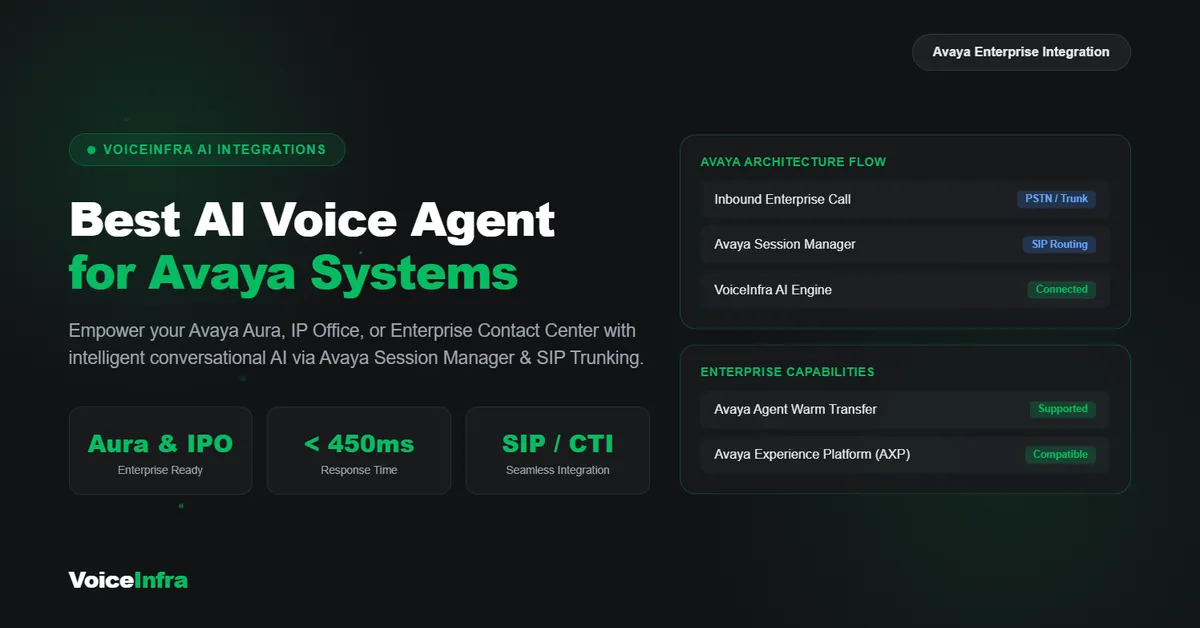
Adding an AI voice agent to an Avaya phone system does not automatically require replacing your existing PBX. However, integrating an external AI platform requires understanding how your Avaya environment handles SIP connections, call routing, endpoint registration, licensing, codecs, and call transfers.
Avaya Aura and Avaya IP Office use different administration methods. Aura deployments commonly involve Session Manager, Communication Manager, and System Manager. IP Office uses its own configuration tools and supports SIP lines and SIP extensions.
This guide explains the Avaya configuration concepts you need to understand before connecting an AI voice agent. It also highlights where settings depend on your Avaya release, deployment architecture, or licensing agreement.
What to Check Before Connecting an AI Voice Agent to Avaya
Before selecting an AI voice platform, identify the Avaya system and release you are using.
You should also confirm:
Whether your deployment uses Avaya Aura or IP Office
Which Avaya component handles external SIP connections
Whether you plan to use a SIP trunk or a SIP extension
Which codecs and DTMF methods your system supports
Whether additional endpoint or trunk licenses are required
How inbound calls will reach the AI agent
Which internal destinations the AI agent must be able to transfer calls to
These checks matter because a configuration that works on one Avaya release or deployment may not apply to another.
Avaya Aura vs. Avaya IP Office: Understanding the Difference
Avaya Aura and IP Office have different architectures and administration workflows.
| Configuration Area | Avaya Aura | Avaya IP Office |
|---|---|---|
| Main Architecture | Communication Manager, Session Manager, and System Manager | IP Office platform |
| SIP Routing | Session Manager routing configuration | SIP line and IP Office call routing |
| Administration | System Manager and Communication Manager tools | IP Office Manager or Web Manager |
| External AI Connection | Depends on the SIP architecture and network design | SIP line or supported SIP endpoint |
| Licensing | Depends on the configured Aura components and entitlements | Depends on trunk or endpoint configuration |
Avaya Aura uses Session Manager to manage SIP routing between configured entities. System Manager provides the administration interface for important routing components.
IP Office provides SIP line and SIP extension functionality. Its configuration and licensing requirements are different from Aura.
Do not use an Aura configuration guide to configure an IP Office system. Start with the documentation for the actual product and release you operate.
SIP Trunk vs. SIP Extension: Which Connection Should You Use?
There are two common SIP connection models to evaluate when integrating an external AI voice platform.
SIP Trunk
A SIP trunk connects two communications systems or platforms. In an AI integration, the Avaya system can route selected calls to the external AI platform through a configured SIP connection.
A trunk-based design may be appropriate when:
You want to route a dedicated telephone number to an AI agent.
Your existing call flow sends selected calls to an external SIP destination.
You need to manage multiple concurrent calls through a trunk connection.
The available channels, routing configuration, security requirements, and provider settings must be checked for the specific deployment.
SIP Extension
A SIP extension represents a SIP endpoint registered with the phone system.
For IP Office, Avaya documents support for third-party SIP extension devices. The endpoint must meet the system's registration and configuration requirements, and the relevant third-party endpoint licensing must be available.
A SIP extension may be useful when you want the AI endpoint to participate in the existing extension-based call flow.
Important: Do not assume that every SIP endpoint can register with every Avaya product or release. Confirm endpoint compatibility, registration requirements, and licensing before choosing this model.
How VoiceInfra Connects with an Avaya Environment
VoiceInfra connects to compatible phone systems through SIP. The exact Avaya-side configuration depends on whether you are using Aura or IP Office and whether your deployment uses a trunk or a supported SIP endpoint.
A typical integration project involves these stages:
Identify the Avaya product, release, and existing SIP architecture.
Choose the appropriate SIP connection model.
Configure the required SIP destination or endpoint on the Avaya side.
Configure the corresponding connection details in VoiceInfra.
Route selected inbound calls to the AI agent.
Configure the required transfer destinations.
Test inbound calls, audio, caller ID, DTMF, and transfers before production use.
The Avaya administrator should use the configuration guide for the installed release rather than relying on menu names from a different version.
You can learn more about the VoiceInfra side of the connection through the VoiceInfra SIP Integration guide.
Configuring SIP Routing in Avaya Aura
Avaya Aura uses Session Manager to route SIP calls between configured SIP entities.
Avaya's official Administering Avaya Aura Session Manager documentation describes the routing components administrators need to understand.
These include SIP entities, entity links, routing policies, and dial patterns.
1. Understand SIP Entities
A SIP Entity represents a SIP-enabled system or component that Session Manager communicates with.
Depending on the architecture, this may represent Communication Manager, a session border controller, or another SIP-connected system.
Before creating an entity for an AI integration, identify the actual SIP destination and the network element that should receive the traffic.
Do not automatically enter the public AI platform address as the SIP Entity without checking the network design. Some deployments route external SIP traffic through an SBC.
2. Understand Entity Links
An Entity Link defines the connection between Session Manager and another SIP entity.
The configuration includes connection details such as the transport method and port.
The values must match the SIP service and network design on the other side. Incorrect transport or port settings can prevent SIP communication.
3. Understand Routing Policies
A Routing Policy determines the destination SIP entity for calls that match the relevant routing conditions.
For an AI integration, the administrator must decide which calls should be routed to the AI platform and which should continue through the existing phone system.
A routing policy should be created according to the intended call flow, not copied from an unrelated deployment.
4. Understand Dial Patterns
Dial Patterns match dialed digits and associate them with a routing policy.
For example, an administrator may create a pattern for a specific destination number or extension range and associate it with the policy that routes calls to the intended SIP entity.
The actual pattern depends on the enterprise dial plan and number format.
5. Review the Communication Manager Connection
In deployments where Communication Manager participates in the SIP trunk connection, its signaling group and trunk group configuration must also be considered.
The exact configuration depends on how Communication Manager and Session Manager are connected.
Do not create duplicate trunk configurations simply because a generic integration tutorial lists them. Review the existing Aura architecture first.
Where to find the official instructions: Avaya's Administering Avaya Aura Session Manager, Release 10.2.x explains SIP entities, entity links, routing policies, dial patterns, and adaptation configuration.
Configuring a SIP Connection on Avaya IP Office
IP Office uses a different configuration process from Aura.
A SIP trunk is configured as a SIP Line. A SIP extension is configured as an endpoint registered with IP Office.
SIP Line Configuration
When using a SIP line, review the relevant fields in IP Office Manager or Web Manager for your installed release.
Important configuration areas include:
SIP line settings
Transport and proxy information
SIP URI configuration
Call routing
Maximum sessions
Codec preferences
DTMF transport
Caller identity settings
The exact field names and available options can vary by release and configuration.
SIP URI and Number Configuration
SIP URI settings identify the numbers and SIP identities used by the line.
The values must match the intended call flow and the configuration expected by the connected SIP platform.
If outbound caller identity is important, test the actual number presented to the receiving party. Do not assume that entering a number in one SIP URI field automatically guarantees the correct caller ID on every call.
Maximum Sessions
Maximum Sessions controls the number of simultaneous sessions allowed by the configured SIP line.
The value should be planned according to the expected concurrent call volume and the capacity available in the system.
A higher configured value does not automatically mean that the required licenses, provider capacity, or system resources are available.
SIP Extension Configuration
If the integration uses a SIP extension, the administrator must configure a compatible SIP user and extension and enable the required SIP registration functionality.
The AI platform must then use the appropriate registration details and network settings.
Avaya's SIP Extension documentation explains that third-party SIP endpoints require a Third-party IP Endpoint license. A successful registration consumes a license count, and the supported number of extensions is subject to the available licenses and the system's extension limits.
This is an important check before planning multiple AI endpoints.
Avaya Licensing: What Should You Verify?
Licensing depends on the Avaya product, release, connection method, and existing entitlements.
For IP Office, Avaya's documentation distinguishes between Avaya IP endpoints and third-party IP endpoints.
A non-Avaya SIP device requires a Third-party IP Endpoint license to register with IP Office.
For a trunk-based deployment, check the applicable SIP trunk licensing and channel capacity for your release and system configuration.
For Avaya Aura, do not assume that the same IP Office endpoint license rules apply. Review the licensing documentation for the specific Aura components and the intended connection architecture.
Before implementation, ask your Avaya partner or administrator to confirm:
The applicable license type
The number of available endpoint licenses
The permitted SIP trunk capacity
The supported concurrent call capacity
Whether any additional feature entitlement is required
This avoids designing an integration around a connection that the installed system is not licensed to support.
Codec Configuration: Making Sure Both Sides Can Exchange Audio
Codec compatibility is essential for SIP calls.
The Avaya system and the AI platform must agree on at least one supported codec. The available codecs and their preference order depend on the configuration of each side.
Common codecs you may encounter include:
| Codec | What to Check |
|---|---|
| G.711 μ-law (PCMU) | Confirm that both systems support it |
| G.711 A-law (PCMA) | Confirm that both systems support it |
| G.722 | Use only when supported by both sides |
| G.729 | Confirm support and any licensing or quality considerations |
These are codec options to evaluate, not a universal Avaya configuration recommendation.
Avaya's IP Office SIP Telephone Installation Notes explain how codec preferences can be configured at system, trunk, and extension level. Avaya recommends understanding the system's codec preference behavior and maintaining consistency where appropriate.
For an AI voice integration, compare the codec configuration on both sides before testing calls.
If audio does not establish correctly, review the SIP and SDP negotiation, supported codecs, and call traces rather than changing codec settings without evidence.
DTMF Configuration for IVR and AI Conversations
DTMF allows callers to press telephone keys during a call.
This is important when an AI agent or connected system needs to receive keypad input, such as:
Selecting an IVR option
Entering an account number
Confirming a booking
Choosing a department
IP Office documentation discusses DTMF transport and RFC2833-related configuration. The correct method must match the connected endpoint or SIP trunk.
Do not assume that RFC2833 is the correct choice for every Avaya deployment. Confirm the configured DTMF method on both sides and test actual keypad input during a call.
Caller ID and P-Asserted-Identity on Avaya
Caller ID problems can occur when the SIP platform and the Avaya system handle identity headers differently.
One header administrators may need to investigate is P-Asserted-Identity, commonly abbreviated as PAI.
PAI carries asserted identity information in SIP environments where the relevant network and trust configuration supports it.
On Avaya Aura, specific Communication Manager trunk configurations include an Identity for Calling Party Display setting. Avaya application notes document P-Asserted-Identity as a configured value in particular SIP trunk examples.
However, this should not be treated as a universal default for every Aura deployment.
On IP Office, review the caller identity options available for the configured SIP line and the actual SIP messages exchanged during the call.
When the wrong caller ID appears, check:
Which identity the AI platform sends.
The From and P-Asserted-Identity headers in the SIP message.
The Avaya trunk or line identity configuration.
The number format expected by the receiving provider.
The caller ID displayed on the receiving telephone.
Test both inbound and outbound calls. A successful inbound call does not prove that outbound caller identity is configured correctly.
Call Transfers Between an AI Agent and Avaya Extensions
Call transfers require coordination between the AI platform and the Avaya call-routing environment.
For example, an AI receptionist may need to transfer a caller to a sales extension, support department, hunt group, or another internal destination.
The Avaya administrator should verify:
The destination number or extension is valid.
The destination is reachable through the configured routing rules.
The SIP platform supports the transfer method being used.
The Avaya system and any SBC allow the required SIP signaling.
The transfer works with the actual Avaya release and call flow.
SIP REFER is one method used in SIP call-transfer scenarios. However, transfer behavior depends on the endpoint, trunk, system configuration, and network path. Do not assume that enabling a single REFER setting guarantees every blind or attended transfer will work.
Test each transfer type that your business intends to use.
Passing Conversation Context to a Human Agent
Avaya handles the telephone call and its routing. The AI platform is responsible for the conversation information it collects and how that information is made available during a transfer.
With VoiceInfra's attended transfer workflow, the receiving agent can be given relevant conversation context before taking over the call.
This is a VoiceInfra workflow capability. It should not be confused with an automatic Avaya SIP feature.
Read more about Cold Transfer vs. Warm Transfer vs. Attended Warm Transfer.
What Can an AI Voice Agent Do with an Avaya Phone System?
Once the SIP connection and call routing are configured and tested, an AI voice agent can support several business workflows.
Answer Inbound Calls
An AI receptionist can answer calls, greet callers, identify their needs, and direct them to the appropriate destination.
Handle Common Questions
The agent can respond to frequently asked questions about services, opening hours, appointments, and business processes.
Book Appointments
With a supported scheduling integration, the agent can collect appointment details and help callers book a suitable time.
VoiceInfra supports Calendly integration for appointment-related workflows.
Route Calls to Employees
The AI agent can transfer calls to configured human destinations when a caller needs additional help.
The destination and transfer method must be tested against the Avaya call flow.
Provide Call Records and Summaries
VoiceInfra can provide call-related records and conversation summaries through its platform. These capabilities are handled by VoiceInfra, rather than being native features of Avaya SIP routing.
Choose an AI Model
VoiceInfra supports multiple AI model providers, allowing businesses to select the model that fits their workflow.
Learn more about VoiceInfra Multi-LLM Support.
Testing Your Avaya AI Integration Before Going Live
A successful SIP registration or trunk connection is only the first step.
Before sending real business calls to the AI agent, test the complete call flow.
Use this checklist:
Confirm SIP connectivity.
Test inbound calls.
Test outbound calls if required.
Confirm two-way audio.
Check codec negotiation.
Test DTMF keypad input.
Verify caller ID.
Test transfers to internal extensions.
Test transfers to hunt groups or other destinations where applicable.
Check what happens when the destination is busy or unavailable.
Review SIP logs and call traces when a test fails.
Also test the integration during the expected peak call volume. A configuration that works for one call may not have enough capacity for several simultaneous calls.
Common Avaya Integration Problems and What to Check
| Problem | What to Investigate |
|---|---|
| SIP Registration Fails | Registration credentials, SIP registrar, network reachability, and endpoint compatibility |
| Calls Do Not Reach the AI | Dial patterns, routing policies, SIP line routing, and destination details |
| No Audio or One-Way Audio | Network path, RTP connectivity, and SDP negotiation |
| Codec Negotiation Fails | Codec support and preferences on both sides |
| Keypad Input Does Not Work | DTMF transport configuration |
| Wrong Caller ID Appears | SIP identity headers and Avaya caller identity settings |
| Transfers Fail | Destination routing, transfer method, and SIP signaling permissions |
| Calls Fail Under Load | Concurrent call capacity, trunk channels, and endpoint limits |
The best troubleshooting approach is to identify the failing stage first. Check signaling, routing, media, and transfer behavior separately instead of changing multiple settings at once.
Try VoiceInfra with Your Existing Avaya Environment
You do not necessarily need to replace your Avaya phone system to introduce AI-powered call handling.
VoiceInfra connects through SIP and can be evaluated alongside your existing telephony environment, subject to the compatibility and configuration requirements of your Avaya deployment.
Start by identifying your Avaya platform, confirming the required SIP connection, and testing a small call flow before expanding to more departments.
You can start your VoiceInfra account or talk to the VoiceInfra team about your integration requirements.
VoiceInfra Pricing
VoiceInfra offers subscription plans for businesses that want to deploy AI voice agents.
| Plan | Monthly Price | Included Minutes | AI Agents |
|---|---|---|---|
| Launch | $49/month | 175 minutes | 1 |
| Starter | $99/month | 350 minutes | 3 |
| Professional | $249/month | 900 minutes | 5 |
| Professional Plus | $399/month | 1,500 minutes | 7 |
These are VoiceInfra platform prices, not Avaya license or telephony charges. Your Avaya licensing, carrier charges, and any third-party services may be separate.
For the latest plan details, visit the VoiceInfra Pricing page.
Frequently Asked Questions
Can I connect an AI voice agent to Avaya Aura?
An AI voice platform can be connected through a compatible SIP architecture. The exact configuration depends on your Aura deployment, Session Manager routing, network design, and the external platform's SIP requirements.
Can I connect an AI voice agent to Avaya IP Office?
IP Office supports SIP lines and third-party SIP extensions. The appropriate method depends on the required call flow, endpoint compatibility, and available licensing.
Does an IP Office SIP extension need a license?
Yes. Avaya documents that non-Avaya SIP endpoints require a Third-party IP Endpoint license. Successful registration consumes a license count.
Is a SIP trunk the same as a SIP extension?
No. A SIP trunk connects systems or platforms, while a SIP extension represents an endpoint registered with the phone system. They have different configuration and licensing considerations.
Which codec should I use for an Avaya AI integration?
There is no universal codec setting for every Avaya installation. Check which codecs are supported by both systems and configure compatible preferences.
Why is my AI agent not receiving calls from Avaya?
Check the call-routing configuration first. On Aura, review the relevant Session Manager routing components. On IP Office, review the SIP line, extension, and associated call-routing configuration.
Why does caller ID appear incorrectly?
The identity headers sent by the SIP platform and the caller identity settings on Avaya must be compatible. Review the SIP trace and the relevant line or trunk configuration.
Can an AI agent transfer calls to an Avaya extension?
This depends on the SIP connection, destination routing, and transfer method supported by the systems involved. Test the intended transfer workflow with your installed Avaya release.
Do I need to replace my Avaya phone system?
Not necessarily. A compatible SIP integration can allow an external AI platform to work alongside an existing Avaya environment. The actual deployment depends on your network and configuration.
How much does VoiceInfra cost?
VoiceInfra plans start at $49 per month. Avaya licenses, carrier charges, and other third-party costs are separate where applicable.
Final Thoughts
Connecting an AI voice agent to Avaya is not just about entering SIP credentials. The administrator needs to understand the existing Avaya architecture, choose the right connection model, confirm licensing, configure routing, and test audio, caller identity, DTMF, and transfers.
Avaya Aura and IP Office have different configuration processes, so always use the documentation for the correct product and release.
With the right integration design, businesses can explore AI-powered call handling while continuing to use their existing Avaya phone system.
Start with VoiceInfra or contact our team to discuss your Avaya integration.