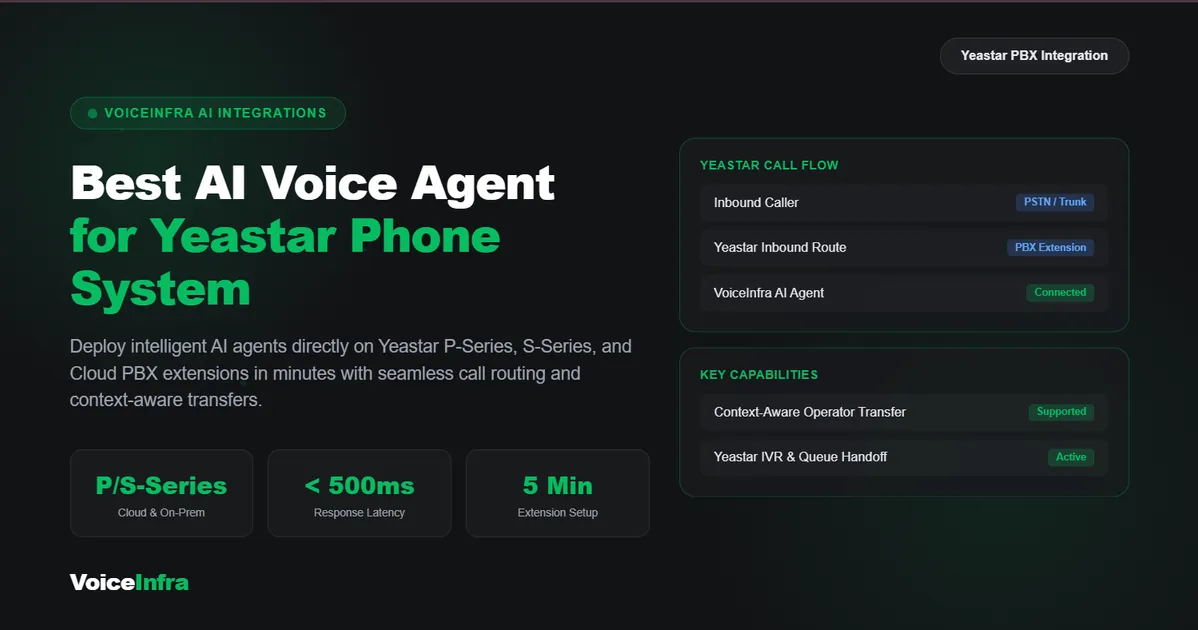
Adding AI to your Yeastar phone system should not mean replacing your PBX or buying new phone numbers. The harder part is knowing which Yeastar model you have, which connection type to use, and which settings can prevent calls from working correctly.
This guide covers how to connect an AI voice agent to Yeastar P-Series, S-Series, and Cloud PBX, including SIP trunks, extension registration, call routing, TLS and SRTP, and blind transfers.
What to Look for in an AI Voice Agent for Yeastar
Before choosing a voice AI platform for Yeastar, check that it can:
Connect over standard SIP without requiring hardware changes.
Let you keep your existing phone numbers, carriers, and contracts.
Work with your Yeastar model and edition.
Transfer calls to your team with the required conversation context.
Support multiple AI models and voice providers without locking you into one vendor.
Be configured quickly, ideally on the same day.
The goal is to add AI-powered call handling to your existing phone system while keeping your current telephony infrastructure.
P-Series, S-Series and Cloud PBX: What's Different?
Yeastar offers several PBX product lines. The overall integration approach is similar, but remote connectivity and configuration requirements vary by model.
| Feature | P-Series Appliance | P-Series Software | P-Series Cloud | S-Series VoIP PBX |
|---|---|---|---|---|
| Where It Runs | Yeastar hardware, such as P550, P560, and P570 | Your VM or server, including VMware, Hyper-V, and KVM | Hosted by Yeastar | Yeastar hardware, such as S20, S50, S100, and S300 |
| Remote SIP Access | May require Remote SIP Service or port forwarding | May require Remote SIP Service or port forwarding | Designed for remote access, subject to service and network settings | May require port forwarding and NAT configuration |
| Typical Use | Single-office deployments | Businesses that want server control | Hosted PBX deployments and managed services | Existing or smaller PBX deployments |
The main difference for AI integration is network access. A cloud-based AI agent must be able to reach your PBX over a supported network connection.
With P-Series Cloud, remote access may be simpler because the PBX is hosted. With Appliance, Software, and S-Series deployments behind a router, you may need Yeastar Remote SIP Service or a properly configured public IP address or domain with appropriate firewall and NAT rules.
Check the documentation for your exact model and firmware before opening SIP services to external connections.
Trunk or Extension Registration?
There are two common ways to connect an AI voice agent to Yeastar: extension registration and SIP trunking.
Option 1: Extension Registration
With extension registration, the AI agent registers with your PBX like a normal SIP extension. Yeastar can then route calls to the AI agent using its extension and call-control features.
This approach is useful when you want AI to become part of your existing phone system without introducing another phone system or assigning a new public number to the agent.
Benefits include:
Integrating AI into your existing PBX architecture.
Using your current phone numbers and carriers.
Routing calls through your existing PBX rules.
Managing the AI agent as a dedicated extension.
VoiceInfra's core approach is PBX-native. AI agents can work as extensions on supported Yeastar systems, so you do not need to replace your phone system.
Learn more about VoiceInfra's Yeastar integration.
Option 2: SIP Trunking
Yeastar P-Series supports different SIP trunk types. The right option depends on which system registers to the other and how the connection is authenticated.
| Trunk Type | How It Works | When to Use It |
|---|---|---|
| Account Trunk | The AI platform registers with the PBX using an account you create | When the AI platform needs to register to your PBX |
| Peer Trunk | Uses IP-based connectivity between the PBX and the AI platform | When you want a dedicated IP-based connection |
| Register Trunk | Your PBX registers to the AI platform using a username and password | When the AI platform provides SIP registration credentials |
The exact options available can depend on your Yeastar model and software version. Confirm which trunk type your integration supports before configuring it.
For many businesses, extension registration is a straightforward way to add an AI agent to the PBX. A trunk can be appropriate when your call-routing design requires a dedicated SIP connection.
How VoiceInfra Works with Yeastar
You can connect VoiceInfra to a compatible Yeastar system and route selected calls to an AI agent.
The general setup process involves six steps:
Create an extension. Add a dedicated extension for the AI agent, such as 7001, and configure a strong password.
Allow remote registration if required. Configure the appropriate remote access and registration settings for your deployment.
Map your call routing. Decide which incoming calls should reach the AI agent.
Set your transfer rules. Define when the AI agent should transfer a caller to a human.
Design the conversation. Configure the greeting, conversation paths, and escalation conditions.
Test the setup. Check call handling, audio, and transfers before going live.
Because the AI agent can work with your existing numbers and carriers, you generally do not need to port your numbers to a new provider just to add AI. Review the VoiceInfra SIP integration for supported connection options and setup requirements.
How to Set Up a SIP Trunk in Yeastar P-Series
If your deployment requires a SIP trunk, follow the general configuration path below. The exact labels may vary by Yeastar version.
Open Extension and Trunk, then select Trunk and click Add.
Choose the appropriate trunk type: account, peer, or register.
For a peer or register trunk, enter the hostname or domain provided by your AI platform, along with the required port and transport.
For an account trunk, configure the username, password, and authentication name. Use the correct PBX address and SIP port for the registration method.
Select compatible codecs. G.711 μ-law and A-law are common starting points when supported by both systems.
Add the DID numbers the trunk should handle, using the number format required by your routing configuration. E.164 is a common international format, such as
+14155550123.Save and apply the configuration, then check whether the trunk status shows as connected.
Important: Register trunks may require at least one DID, and account-based configurations must avoid extension-number conflicts between the two systems. Confirm these requirements for your specific Yeastar model and trunk type.
Set Up the Dial Plan and Outbound Route
Yeastar uses inbound and outbound routes to control how calls move through the phone system. A clear routing structure makes an AI integration easier to troubleshoot and manage.
1. Reserve an Extension Range
Consider assigning AI agents their own extension range, such as 7000 to 7099. A dedicated range can make reporting, troubleshooting, and call routing easier to understand.
Choose a range that does not conflict with existing extensions or numbering rules.
2. Create an Inbound Route
Open Call Control, then select Inbound Route.
Match the incoming DID and choose where calls should go. Depending on your use case, you may route calls to:
The AI agent's extension.
A time condition that sends after-hours calls to AI.
A ring group or other existing call flow.
A specific route based on the caller's number or business requirements.
Start with a limited test route before directing all incoming calls to the AI agent.
3. Create an Outbound Route
Open Call Control, then select Outbound Route.
Configure the number pattern, choose the appropriate trunk, and allow the AI extension or its group to use that route if outbound calls or external transfers are required.
This step is important. If the AI agent attempts an outbound call or transfers a caller to an external number, the call may fail when its extension is not permitted to use a matching route.
TLS and SRTP Support by Yeastar Model
Security is an important part of any SIP integration.
TLS encrypts SIP signaling between compatible systems.
SRTP encrypts the audio stream between compatible endpoints.
Support and configuration requirements depend on the Yeastar model, firmware, subscription, and the AI platform's capabilities.
| Model | TLS | SRTP | Notes |
|---|---|---|---|
| P-Series Appliance, Software, and Cloud | Supported on compatible configurations | Supported on compatible configurations | Certificate setup or other configuration may be required |
| S-Series VoIP PBX | Depends on model and firmware | Depends on model and firmware | Check the documentation for your exact system |
| S-Series Cloud PBX | Verify for your service and plan | Verify for your service and plan | Confirm current service-specific support |
Both sides must support compatible security settings. Confirm the supported transport and encryption options with your AI platform before enabling TLS or SRTP.
If using UDP or TCP without encrypted signaling, restrict SIP access to trusted sources wherever possible and apply appropriate firewall rules. Do not expose SIP services broadly to the public internet without reviewing the security implications.
How to Configure Blind Transfers with a SIP URI
When an AI agent needs to transfer a caller to another destination, the integration may use SIP REFER, depending on the platform and transfer method.
A SIP URI may follow this general pattern:
sip:<number>@<your-pbx-address>
On Yeastar, the trunk carrying the call may need to allow REFER and restrict which destinations are permitted.
Step 1: Enable REFER Support
Open the relevant trunk settings and check whether SIP REFER support is available and enabled for your connection.
The exact setting name and location can vary by Yeastar model and firmware.
Step 2: Select Allowed Destinations
Choose which destinations the AI agent can transfer calls to. Depending on your setup, the options may include internal extensions, external numbers, or both.
Allow only the destinations your workflow requires.
Step 3: Configure the External Transfer Prefix
If external transfers are needed, check whether your Yeastar outbound route requires a prefix. Configure the transfer behavior so the number matches the correct route.
For example, if your outbound route matches numbers beginning with 9, your transfer configuration may need to apply that prefix before the call is routed externally.
| Transfer Destination | Example Refer-To URI | Configuration to Check |
|---|---|---|
| Internal Extension | sip:1002@pbx.example.com | Internal destinations are permitted |
| External Number | sip:14155550123@pbx.example.com | External transfers are permitted, and the required prefix matches an outbound route |
These examples are illustrative. Use the address, number format, and transfer options appropriate to your deployment.
Security recommendation: If the AI agent only needs to transfer calls to your team, allow internal transfers and leave external transfers disabled. This limits the risk of unauthorized external calling if credentials are misused.
What Can Your Yeastar AI Voice Agent Do?
After the integration is configured, a voice AI agent can help automate routine phone conversations while keeping your existing PBX and call flows.
Common use cases include:
Answer calls 24/7: Handle incoming calls outside business hours and reduce missed opportunities.
Answer customer questions: Understand caller intent and respond to common requests.
Book appointments: Connect supported scheduling workflows, including Calendly integration, so callers can arrange appointments during a conversation.
Transfer calls to humans: Use the appropriate transfer workflow to route callers to your team. Explore cold, warm, and attended warm transfers.
Work with existing call flows: Keep IVR menus, ring groups, and routing rules working alongside the AI integration where supported.
Create call records: Use supported workflows to access call transcripts and structured summaries for follow-up and review.
You can also choose the AI model behind your agent. VoiceInfra supports multiple LLM providers and premium voices across more than 30 languages, helping businesses configure experiences for different customers and use cases.
Try VoiceInfra Free
You do not have to commit before testing how an AI agent works with your phone system.
Start with a free trial to evaluate call quality, your Yeastar integration, and the potential impact on your business. You can set up a demo number and test the experience before expanding to more call flows.
Ready to get started?
VoiceInfra Pricing
VoiceInfra offers subscription plans for businesses with different call volumes and AI agent requirements.
| Plan | Price | Minutes included | Agents |
|---|---|---|---|
| Launch | $49/mo | 175 | 1 |
| Starter | $99/mo | 350 | 3 |
| Professional | $249/mo | 900 | 5 |
| Professional Plus | $399/mo | 1,500 | 7 |
The plans are presented with access to the platform's AI providers and a PBX extension, as described in the source pricing information. Check the VoiceInfra pricing page for current inclusions, usage terms, and plan details.
Not Using Yeastar? The Same Approach Can Work with Other PBX Systems
Yeastar is not the only phone system that can connect with a SIP-compatible AI voice platform. Similar integration approaches can be used with compatible systems such as 3CX, FreePBX, Asterisk, Avaya, Cisco, and Mitel.
The exact setup differs by PBX model, firmware, and network architecture. If you manage multiple phone systems, check the integration requirements for each platform before deploying the same configuration everywhere.
Explore the available VoiceInfra integrations to learn more.
Frequently Asked Questions
Do I need to replace my Yeastar PBX to add an AI voice agent?
No. VoiceInfra can add AI to a compatible existing PBX through supported SIP integration. You can keep your current phone system, phone numbers, carriers, and contracts.
Which Yeastar models work with an AI voice agent?
The integration approach depends on SIP support and the model's configuration. This guide covers P-Series Appliance, Software, and Cloud editions, as well as S-Series systems. Confirm compatibility and setup requirements for your exact model and firmware.
Should I use a SIP trunk or an extension?
Use extension registration when you want the AI agent to behave like part of your phone system. A SIP trunk may be more suitable when you need a dedicated connection between the AI platform and the PBX.
Which Yeastar trunk type should I choose?
An account trunk is used when the AI platform registers to your PBX with an account you create. A peer trunk is generally used for IP-based connectivity. A register trunk is used when your PBX registers to the AI platform with supplied SIP credentials. Verify the supported method for your integration.
Why do outbound calls from the AI agent fail?
Check the outbound route, number pattern, trunk status, and extension permissions. The AI extension must be allowed to use a matching route if it needs to place outbound calls or transfer callers to external numbers.
Can the AI agent transfer calls to external numbers?
This depends on the supported transfer method and your PBX configuration. If using SIP REFER, check REFER support, permitted destinations, number formatting, and any required outbound prefix. Enable external transfers only when necessary.
Does Yeastar support TLS and SRTP?
Support depends on the Yeastar product, firmware, service plan, and configuration. Confirm that both Yeastar and your AI platform support compatible TLS and SRTP settings before enabling them.
Do I need new phone numbers to add AI to Yeastar?
Not necessarily. With an extension-based integration, the AI agent can operate as a PBX extension and handle calls routed to it. Your existing numbers and carriers can remain in place.
Is there a free trial for VoiceInfra?
The VoiceInfra content for this integration offers a free trial so you can test call quality and the integration before committing. Visit the VoiceInfra portal to get started and confirm the current trial terms.
How much does VoiceInfra cost?
The plans listed in this guide start at $49 per month, including 175 minutes and one AI agent. Check the pricing page for current plans and terms.
Final Thoughts
The best AI voice agent for Yeastar is one that fits your existing phone system rather than forcing you to replace it. Choose the appropriate connection method for your Yeastar model, configure the required inbound and outbound routes, and restrict transfer permissions to the destinations your business needs.
Before going live, test registration, two-way audio, call routing, and transfers using real call scenarios. Review TLS and SRTP options where supported, and make sure your PBX is protected by appropriate access controls.
Start with a free trial, test calls, and expand the integration as your requirements grow.
Ready to add AI to your Yeastar phone system? Start your VoiceInfra free trial or talk to our team for help getting started.