Every business deals with the same tedious routine: schedule a meeting, open Outlook, fill in the details, add attendees, create a Teams link, then switch to Teams and notify the team channel about the new meeting. It's a multi-step process that eats up valuable time, repeated dozens of times per week across your organization.
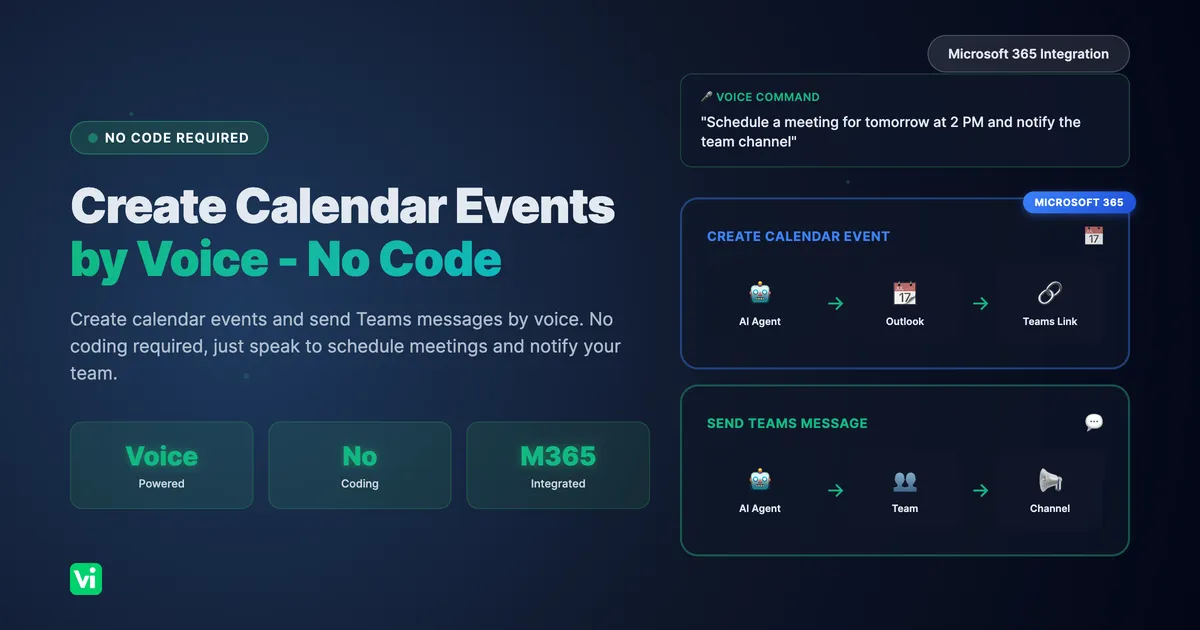
What if you could just say "Schedule a product review meeting with Sarah for tomorrow at 2 PM and let the product team know in our Teams channel", and have it all happen automatically?
Key takeaway: VoiceInfra's AI voice agents let you create calendar events and send Teams messages by voice, no coding required. Just speak naturally, and the AI handles Microsoft 365 integration for you.
The Problem: Manual Microsoft 365 Scheduling is a Time Sink
For teams heavily invested in the Microsoft 365 ecosystem, the scheduling workflow involves multiple steps across different applications:
The Manual Scheduling Workflow
Open Microsoft Outlook or Teams calendar
Click "New Meeting" and fill in the subject, date, and time
Add attendees by searching and selecting email addresses
Enable the Teams meeting toggle for the video link
Write a description or agenda
Send the invite
Switch to Microsoft Teams
Navigate to the appropriate team and channel
Compose a message about the new meeting
Paste the meeting link and send
Time per meeting: Several minutes across both applications, Meetings per week: Varies by role and team, Cumulative time: Adds up significantly across the organization
The Real Cost of Manual Scheduling
The cumulative time spent on scheduling across an organization can be substantial, especially for teams with high meeting volumes.
Context switching kills productivity: Every time you switch between Outlook and Teams, you lose focus
Human errors creep in: Wrong times, missing attendees, forgotten Teams notifications
Inconsistent communication: Some team members get notified, others don't
Delayed responses: Meetings get scheduled, but teams aren't informed promptly
Current Automation Attempts Fall Short
Most businesses try to solve this with:
Power Automate flows: Complex to set up, require technical expertise, and break easily
Third-party scheduling tools: Additional cost, separate from existing workflows, limited Teams integration
Calendar bots: Rigid command structures, poor natural language understanding
Manual scripts: Require developer maintenance, security concerns with API access
None of these solutions offers the simplicity of natural conversation combined with deep Microsoft 365 integration.
The Solution: VoiceInfra's Microsoft 365 SSO Integration
VoiceInfra's AI voice agents connect directly to Microsoft 365 through secure OAuth 2.0 authentication, enabling natural language control over calendar events and Teams messaging.
How It Works: Two Functions, One Conversation
The integration provides two key Microsoft 365 functions that work together seamlessly:
1. Create Calendar Event (microsoft365_create_event)
Create Outlook calendar events with automatic Teams meeting links through simple voice commands.
What it does:
Creates calendar events with subject, date/time, and attendees
Automatically generates Teams meeting links
Sends invitations to all attendees
Supports timezone handling
Creates online or in-person meetings
Example voice command:
"Schedule a budget review meeting with the finance team for Friday at 3 PM"
What happens automatically:
AI Agent creates event:
├── Subject: "Budget Review Meeting"
├── Date: Friday at 3:00 PM
├── Duration: 1 hour (default)
├── Attendees: finance-team@company.com
├── Teams Meeting: Enabled (auto-generated link)
└── Invitations: Sent to all attendees
2. Send Teams Message (microsoft365_send_teams_message)
Send messages directly to Microsoft Teams channels, perfect for notifications and alerts.
What it does:
Posts messages to any Teams channel you specify
Supports text and HTML formatting
Can include links, mentions, and rich content
Works with any team you're a member of
Example voice command:
"Post in the marketing channel that the campaign launch is confirmed for next Monday"
What happens automatically:
AI Agent sends message:
├── Team: Marketing Team
├── Channel: General
└── Message: "📢 Campaign launch confirmed for next Monday! Get ready team."
The Combined Workflow: Schedule and Notify in One Breath
Here's where the magic happens. VoiceInfra's AI agents can execute both functions in a single conversation:
User says:
"Schedule a product demo with Acme Corp for Thursday at 2 PM and let the sales team know in their Teams channel"
AI Agent executes:
Creates Calendar Event:
Subject: "Product Demo - Acme Corp"
Date: Thursday at 2:00 PM
Duration: 1 hour
Teams meeting link: Auto-generated
Calendar: Your Outlook calendar
Sends Teams Message:
Team: Sales Team
Channel: General
Message: "📅 New demo scheduled: Product Demo with Acme Corp on Thursday at 2 PM. [Join Teams Meeting Link]"
Total time: 5 seconds of speaking vs. 5-10 minutes of manual work
Practical Ways to Use This Feature
Here are customer-facing scenarios where VoiceInfra's Microsoft 365 integration streamlines scheduling during voice conversations:
Use Case 1: Customer Scheduling a Consultation
A potential customer calls your business to inquire about services and wants to schedule a consultation meeting.
How it works with VoiceInfra:
Customer calls and says: "I'd like to schedule a consultation to discuss your services"
AI Agent responds: "I can schedule that for you. What date and time works best?"
Customer: "Tomorrow at 2 PM would be great"
AI Agent:
├── Creates Outlook event: "Consultation - [Customer Name]"
├── Date: Tomorrow at 2:00 PM
├── Teams meeting link: Auto-generated
├── Sends confirmation email to customer
└── Posts to #sales channel: "📞 New consultation scheduled for tomorrow 2 PM"
Why this matters: Customers get immediate scheduling without waiting for a human agent. The sales team is instantly notified and can prepare for the meeting.
Use Case 2: Customer Booking a Service Appointment
A customer calls to book a service appointment, common for businesses like HVAC repair, dental offices, consulting firms, or any appointment-based service.
How it works with VoiceInfra:
Customer calls: "I need to schedule a maintenance appointment for next week"
AI Agent: "I can book that for you. Would Tuesday morning or Wednesday afternoon work better?"
Customer: "Tuesday at 10 AM"
AI Agent:
├── Creates event: "Service Appointment - [Customer Name]"
├── Date: Tuesday 10:00 AM
├── Adds customer contact details from call
├── Teams meeting: Enabled (for remote consultations)
└── Posts to #service-team: "🔧 Service appointment booked: Tuesday 10 AM - [Customer Name]"
Why this matters: Customers book appointments instantly during the call. Service teams see new appointments in their Teams channel immediately and can prepare accordingly.
Use Case 3: Customer Requesting a Callback
A customer calls with an issue that requires specialist follow-up. The AI agent schedules a callback and notifies the relevant team.
How it works with VoiceInfra:
Customer calls: "I have a billing question that needs to be resolved"
AI Agent: "I'll schedule a callback with our billing specialist. What time works best for you?"
Customer: "This afternoon around 3 PM"
AI Agent:
├── Creates event: "Callback - [Customer Name] - Billing Inquiry"
├── Time: Today 3:00 PM
├── Adds notes from the conversation
├── Assigns to billing specialist
└── Posts to #billing-support: "⚠️ Callback scheduled at 3 PM for [Customer Name] - billing inquiry"
Why this matters: Customers don't wait on hold or get transferred multiple times. The callback is scheduled immediately, and the specialist team is notified with full context.
Use Case 4: Customer Scheduling a Product Demo
A prospect calls interested in your product and wants to schedule a demo with your sales team.
How it works with VoiceInfra:
Customer calls: "I'm interested in your product. Can I schedule a demo?"
AI Agent: "Absolutely! I'll set up a demo with our product specialist. When would you like to meet?"
Customer: "Thursday afternoon if possible"
AI Agent:
├── Creates event: "Product Demo - [Company Name]"
├── Date: Thursday 2:00 PM (suggests available slot)
├── Teams meeting link: Auto-generated
├── Invites product specialist
└── Posts to #demos: "🎯 New demo booked: Thursday 2 PM with [Company Name]"
Why this matters: Prospects get instant demo scheduling during their initial inquiry call. Sales team visibility ensures the right specialist is prepared with context before the demo.
Use Case 5: Customer Rescheduling an Appointment
A customer calls to reschedule an existing appointment due to a conflict.
How it works with VoiceInfra:
Customer calls: "I need to reschedule my appointment from Tuesday to later in the week"
AI Agent: "I can help with that. Let me check available times... Wednesday at 2 PM or Friday morning are open. Which works for you?"
Customer: "Wednesday at 2 PM is perfect"
AI Agent:
├── Updates existing event to Wednesday 2:00 PM
├── Sends updated invitation to customer
├── Updates calendar with new time
└── Posts to #appointments: "📅 Appointment rescheduled: [Customer Name] moved to Wednesday 2 PM"
Why this matters: Customers reschedule in one quick call without navigating phone trees or waiting for human agents. Teams stay informed about schedule changes instantly.
Technical Architecture: How Microsoft 365 Integration Works
VoiceInfra uses Microsoft Graph API with secure OAuth 2.0 authentication to interact with Microsoft 365 services.
OAuth 2.0 Authentication Flow
    A[User clicks Connect Microsoft 365] --> B[VoiceInfra generates authorization URL]
    B --> C[Popup opens Microsoft 365 login]
    C --> D[User authenticates & grants permissions]
    D --> E[Microsoft redirects with auth code]
    E --> F[VoiceInfra exchanges code for tokens]
    F --> G[Tokens stored securely encrypted]
    G --> H[Integration status: Connected]
    H --> I[AI voice agent ready to create events & send messages]
Required Microsoft Graph API Permissions
PermissionPurposeCalendars.ReadWriteCreate, read, update calendar events, and Team.ReadBasic.AllList teams user belongs to the Channel.ReadBasic.AllList channels within teamsChannelMessage.SendPost messages to channels
API Endpoints Used
Create Calendar Event:
POST https://graph.microsoft.com/v1.0/me/eventsSend Teams Message:
POST https://graph.microsoft.com/v1.0/teams/{team_id}/channels/{channel_id}/messagesList Teams:
GET https://graph.microsoft.com/v1.0/me/joinedTeamsList Channels:
GET https://graph.microsoft.com/v1.0/teams/{team_id}/channelsSecurity Best Practices
VoiceInfra implements enterprise-grade security for Microsoft 365 integration:
Secure Token Storage: OAuth tokens are stored
Minimal Permissions: Only request scopes needed for specific functions
Automatic Token Refresh: Seamless operation without user intervention
User Control: Disconnect anytime from the dashboard
Encrypted Communication: All API calls use HTTPS/TLS 1.3
Popup-Based Auth: OAuth flow isolated for security
Step-by-Step Implementation Guide
Setting up Microsoft 365 integration takes approximately 15 minutes.
Phase 1: Connect Microsoft 365 (5 minutes)
Prerequisites:
Microsoft 365 business account
Admin access or permission to grant OAuth consent
VoiceInfra account
Step 1: Navigate to the Integrations page in the VoiceInfra dashboard
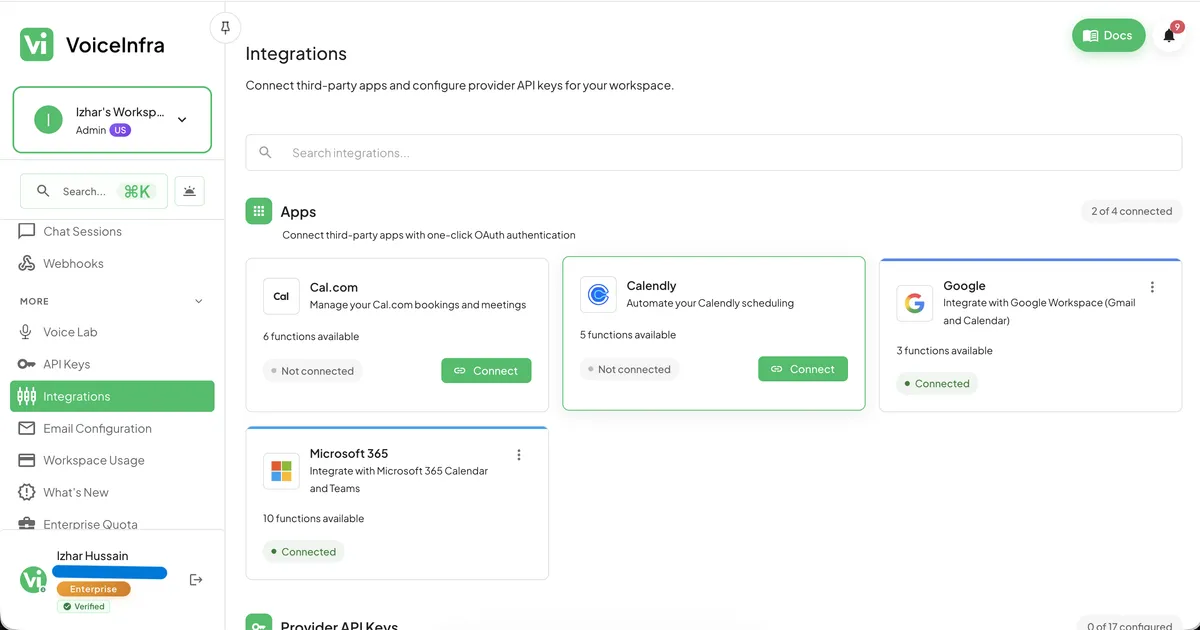
Step 2: Click "Connect" on the Microsoft 365 provider
Step 3: Sign in with your Microsoft 365 credentials
Step 4: Grant permissions for calendar and Teams access
Step 5: Verify the connection status shows "Connected"
Phase 1 Complete: Microsoft 365 is now linked to your VoiceInfra account
Phase 2: Add Functions to Your AI Assistant (5 minutes)
Step 1: Go to the Functions page in the dashboard
Step 2: Expand "Microsoft 365" in the connected providers list
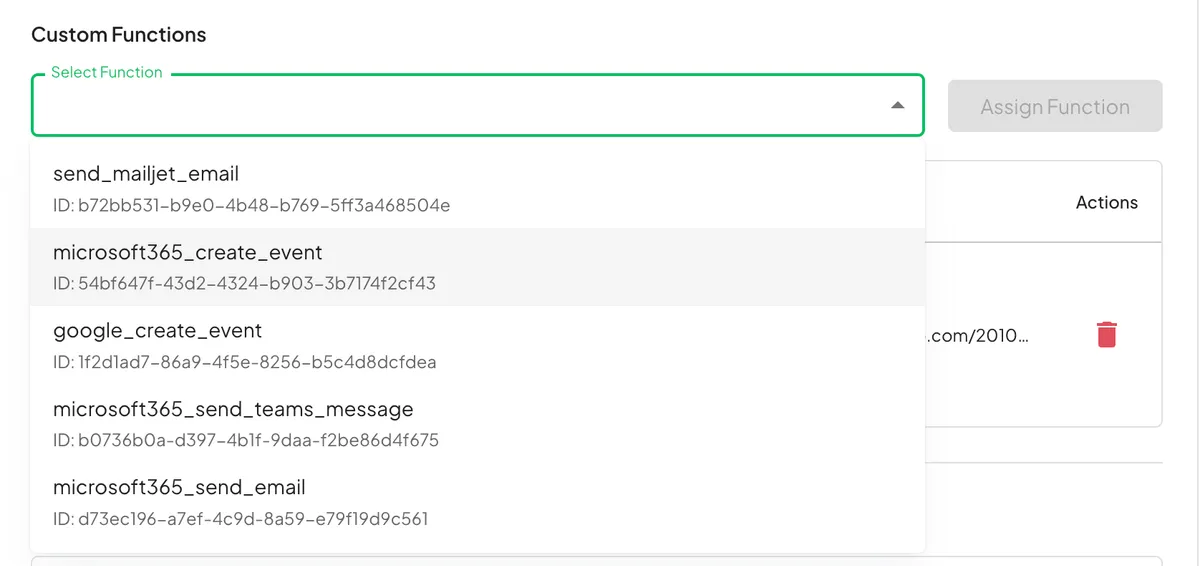
Step 3: Click "Add" on "Create Calendar Event"
Step 4: Configure default settings (optional):
Default meeting duration
Default timezone
Online meeting preference
Step 5: Click "Add" on "Send Teams Message"
Step 6: Select your team and default channel for notifications
Phase 2 Complete: Functions are now available to your AI voice agent
Phase 3: Test and Deploy (5 minutes)
Step 1: Use the Function Tester to verify:
Create a test event on your calendar
Send a test message to a Teams channel
Step 2: Add functions to your AI assistant's workflow
Step 3: Test with a voice conversation:
"Schedule a test meeting for tomorrow at 2 PM"
Step 4: Verify the event appears in your Outlook calendar
Step 5: Test combined workflow:
"Schedule a team sync for Friday at 10 AM and post in the general channel"
Phase 3 Complete: Your AI voice agent can now create events and send Teams messages
Common Challenges and Solutions
Challenge 1: "I don't want to give access to all my Teams channels."
Reality Check: Security-conscious organizations may be hesitant to grant broad access.
Solution: VoiceInfra uses a minimal permission scope. You can configure exactly which teams and channels the AI agent can access during setup. The integration only requests permissions for the specific functions you enable.
Challenge 2: "What if the AI schedules something incorrectly?"
Reality Check: AI mistakes can cause scheduling conflicts and confusion.
Solution: VoiceInfra's AI agents confirm details before taking action. The agent will repeat back the meeting details and ask for confirmation:
"I'll schedule a product review meeting for tomorrow at 2 PM with Sarah. Should I create this event?"
You can also configure the agent to show a preview before committing changes.
Challenge 3: "How does timezone handling work for remote teams?"
Reality Check: Remote teams span multiple time zones, creating scheduling complexity.
Solution: The AI agent automatically detects your timezone and can handle timezone conversions. You can say:
"Schedule a meeting with the London team for 9 AM their time tomorrow"
The agent will convert to the appropriate time and create the event correctly.
Advanced Features to Consider
Multi-Channel Notifications
Configure the AI agent to notify multiple Teams channels for important meetings:
"Schedule the quarterly review for Friday and post in both the leadership and finance channels"
Recurring Meeting Support
Set up recurring meetings with a single voice command:
"Schedule a weekly team standup every Monday at 9 AM and notify the team channel"
Attendee Group Management
Create groups for common meeting types:
"Schedule a product sync with the engineering team" (automatically adds all engineering team members)
Calendar Conflict Detection
The AI agent checks for conflicts before creating events:
"I see you have a conflict at 2 PM. Would you like to schedule at 3 PM instead?"
Rich Message Formatting
Teams messages support rich formatting:
Bold/italic text for emphasis
📅 📊 📢 Emojis for visual scanning
@mentions to notify specific people
Clickable meeting links
Cost Analysis & ROI
What This Actually Costs
VoiceInfra subscription: Included for free
Microsoft 365 integration: No additional cost from Microsoft
API calls: Microsoft Graph API is free for standard usage
Setup time: 15-30 minutes, one-time
Training: Minimal (natural language interface)
How to Calculate Your Potential Savings
Use this framework to estimate time savings for your organization:
Variables to consider:
Number of employees who schedule meetings regularly
Average meetings scheduled per person per week
Current time spent per meeting (including calendar + Teams notification)
Average hourly cost per employee
Example calculation framework:
Time saved per meeting: ~5 minutes (voice vs manual)
Weekly meetings per scheduler: 15-20
Schedulers in organization: [your number]
Potential weekly time saved = 5 min × meetings × schedulers
The actual savings depend on your specific workflow complexity and how often your team schedules meetings that require Teams notifications.
Frequently Asked Questions
Is there an API for Outlook calendar?
Yes, Microsoft provides the Outlook Calendar API through the Microsoft Graph API. The Graph API endpoint https://graph.microsoft.com/v1.0/me/events allows you to create, read, update, and delete calendar events. VoiceInfra uses this API under the hood, so you don't need to write code; you just speak naturally, and the AI agent handles the API calls.
How do I access the Outlook calendar programmatically?
Traditionally, you would need to:
Register an application in Azure AD
Configure OAuth permissions
Write code to authenticate and call the Microsoft Graph API
Handle token refresh and error management
With VoiceInfra, you skip all of that. The OAuth flow is handled through a simple pop-up, and the AI agent makes the API calls based on your voice commands. No coding required.
How do I create calendar events with Microsoft Graph API?
The Microsoft Graph API endpoint for creating events is:
POST https://graph.microsoft.com/v1.0/me/eventsYou need to send a JSON body with the event details (subject, start/end time, attendees, etc.). VoiceInfra's AI agent constructs this request automatically when you say something like "Schedule a meeting for tomorrow at 2 PM."
How do I send messages to Teams channels automatically?
Microsoft Graph API provides the endpoint:
POST https://graph.microsoft.com/v1.0/teams/{team_id}/channels/{channel_id}/messagesYou need the team ID and channel ID, plus proper authentication. VoiceInfra handles this; you configure which team and channel during setup, then the AI agent posts messages when you ask it to notify your team.
Do I need to be a Microsoft 365 admin to set this up?
No, you don't need admin access. Any Microsoft 365 user can connect their account. However, some organizations may require admin consent for certain permissions. Check with your IT department if you encounter permission errors.
Can the AI agent access all my Teams channels?
Only the teams and channels you explicitly configure during setup. You have full control over which channels the AI can post to.
What happens if Microsoft 365 is down?
VoiceInfra gracefully handles API errors. If Microsoft 365 is unavailable, the AI agent will inform you and can retry the action later or provide alternative options.
Can I use this with shared calendars?
Yes, the integration works with the shared calendars you have access to. You can specify which calendar to use when creating events.
Can I customize the Teams message format?
Yes, you can configure default message templates or let the AI agent compose contextual messages based on the meeting details.
What languages does the AI agent support?
VoiceInfra's AI agents support 50+ languages for voice commands. The calendar events and Teams messages will be created in the language you speak.
Is there a limit on how many events or messages I can create?
Microsoft Graph API has rate limits, but they're generous (thousands of requests per day). For typical business use, you won't encounter limits.
Next Steps: Your Action Plan
Today
Log in to your VoiceInfra dashboard
Navigate to Integrations → Microsoft 365
Click "Connect" and authorize access
This Week
Add Create Event and Send Teams Message functions
Test with a few sample meetings
Configure your default Teams channels
Next 2 Weeks
Roll out to team members who schedule frequently
Create templates for common meeting types
Measure time savings and gather feedback
Conclusion: Key Takeaways
VoiceInfra's Microsoft 365 integration transforms scheduling from a manual, multi-step process into a simple voice command:
Create Calendar Events Instantly
Speak naturally to create Outlook events
Automatic Teams meeting link generation
Attendee invitations sent automatically
Send Teams Messages Simultaneously
Notify channels without switching apps
Rich formatting with links and mentions
Consistent team communication
Eliminate Context Switching
One conversation does both tasks
No more Outlook → Teams → back to Outlook
Focus on your work, not your tools
Enterprise-Grade Security
OAuth 2.0 authentication
Minimal permission scope
Encrypted token storage
User-controlled access
No Technical Expertise Required
Natural language interface
15-minute setup
No coding or scripting
Works with existing Microsoft 365 subscription
Stop wasting time on manual scheduling. Let your AI voice agent handle Microsoft 365 calendar events and Teams notifications while you focus on what matters.
About the Author: The VoiceInfra team specializes in building AI voice agents that integrate seamlessly with enterprise productivity tools. We help businesses automate workflows through natural conversation, reducing administrative overhead and improving team productivity.
Ready to automate your Microsoft 365 scheduling?
Get Started with VoiceInfra Microsoft 365 Integration
VoiceInfra makes Microsoft Teams and Outlook automation simple and powerful:
✓ Quick Setup
Connect Microsoft 365 in under 5 minutes
No coding or technical expertise required
Works with your existing Microsoft 365 subscription
✓ Natural Language Control
Speak naturally to create events
No commands to memorize
Works in 50+ languages
✓ Seamless Integration
Creates Outlook calendar events with Teams links
Posts to any Teams channel automatically
Handles time zones and attendees intelligently
✓ Enterprise Security
OAuth 2.0 authentication
Minimal permission scope
Ready to save hours every week?
👉 Start Free Trial - Connect Microsoft 365 and try voice-powered scheduling
👉 Schedule Demo - See Microsoft 365 automation in action