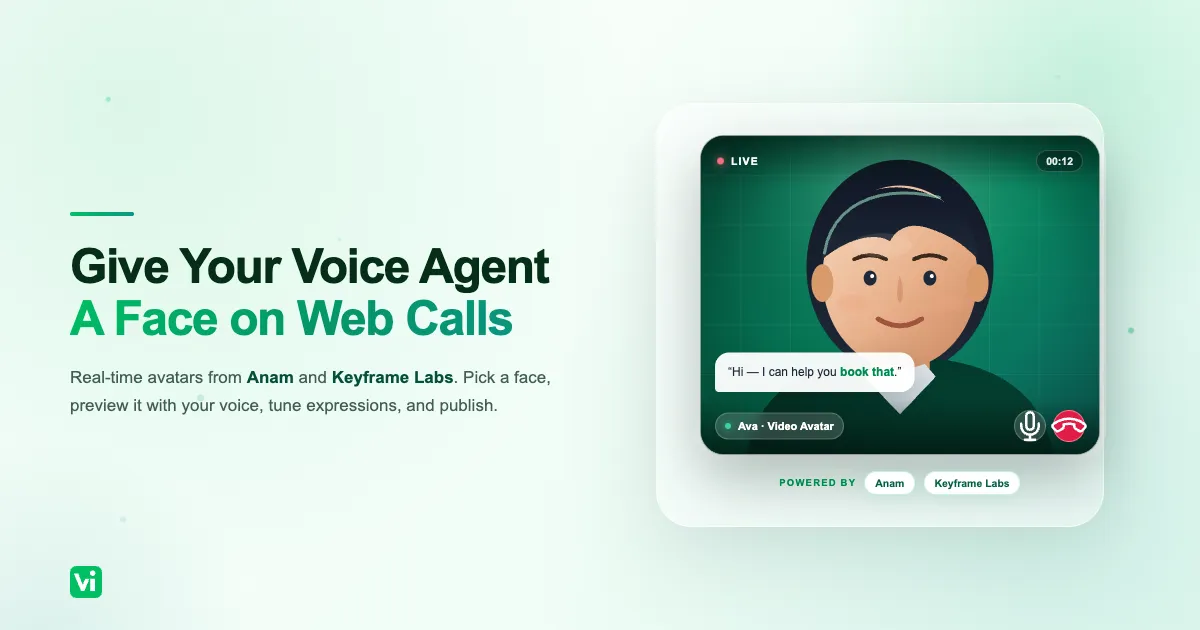
Want your AI voice agent to show up with a face? VoiceInfra Video Avatars add a real-time video avatar to AI voice agents on web calls on the website widget, powered by Anam and Keyframe Labs. Pick an avatar, preview it with your voice, tune its expressions, and publish. Phone calls stay audio-only.
Key takeaway: Video Avatars are a setting on the assistant or workflow you already have. The same prompt, tools, knowledge, and phone routing keep working. The avatar only appears on surfaces that have a screen.
Why Video Avatars, and Why Not on Phone Calls
The Challenge: A Voice-Only Web Experience
A website visitor is already looking at a screen. They are reading a product page, comparing prices, or filling out a booking form. When the voice agent answers without a face, the conversation can feel anonymous, a helpful voice attached to nothing.
The obvious fix is video everywhere. That is usually the wrong fix:
Phone calls do not need video. The caller is holding a phone to their ear, often while walking or driving. Video adds cost, bandwidth, and a camera nobody asked to use.
Video on every surface is expensive. Rendering a face for calls that cannot show it burns compute for no customer benefit.
A face that does not match the brand is worse than no face. Avatars need to be chosen and previewed, not switched on blindly.
The agent should not fork. Rebuilding the assistant for video creates two products to maintain.
The VoiceInfra Approach: Video Where There Is a Screen
VoiceInfra Video Avatars are web-only by design:
Portal test calls show the avatar while you build and test the agent.
Website voice widgets show the avatar during a live call.
Phone calls stay audio-only. No camera, no video track, no pretending the caller can see something.
The same assistant runs underneath every surface. Turning the avatar on does not change the prompt, tools, knowledge, phone numbers, or call routing. It changes how the agent appears on the surface that can show it.
What You Get with Video Avatars
A Face That Speaks with Your Agent's Voice
Video Avatars are not a separate assistant or a separate product. They are a visual layer on the agent you already configured:
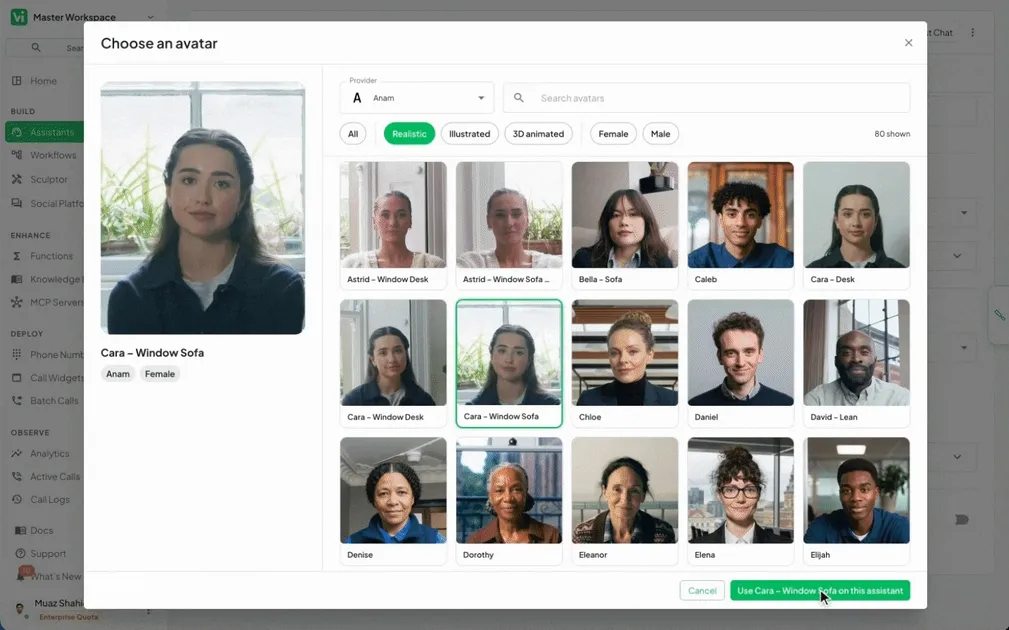
Avatar catalog: browse avatars from Anam and Keyframe Labs, the providers configured for your deployment
Style filters: realistic, illustrated, or 3D animated
Search and facets: find an avatar by name, model, or gender
Live preview: see the selected avatar before applying it
Facial expressions: turn expressions on and choose what the avatar can show
Word-timed movement: the face moves on the word with supported voices
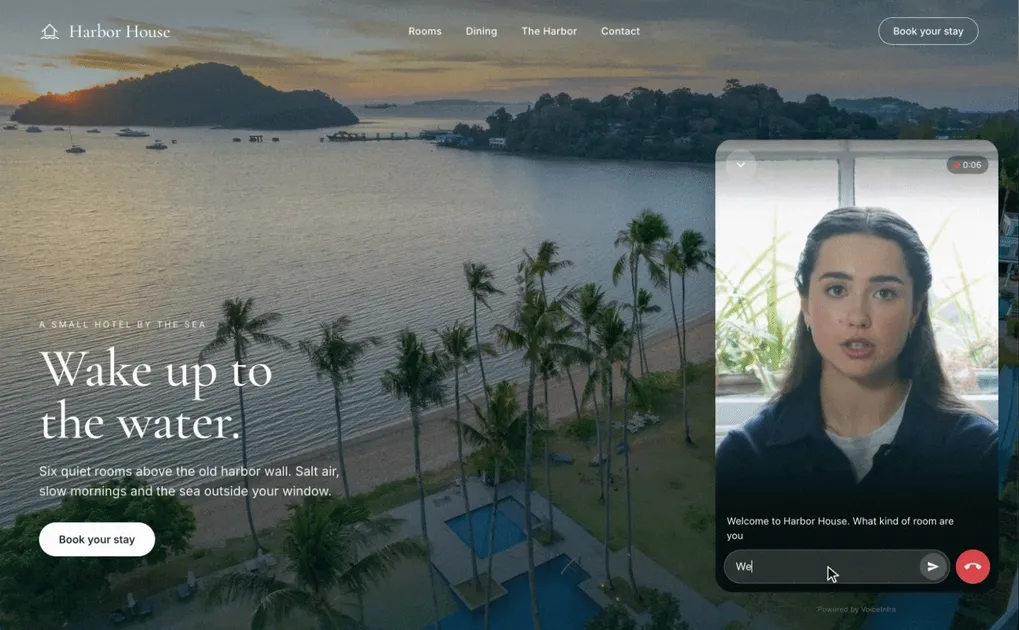
Full-screen widget stage: the avatar fills the call stage, with conversation and controls on top
Minimize to a live bubble: keep the call going while the avatar becomes a thumbnail
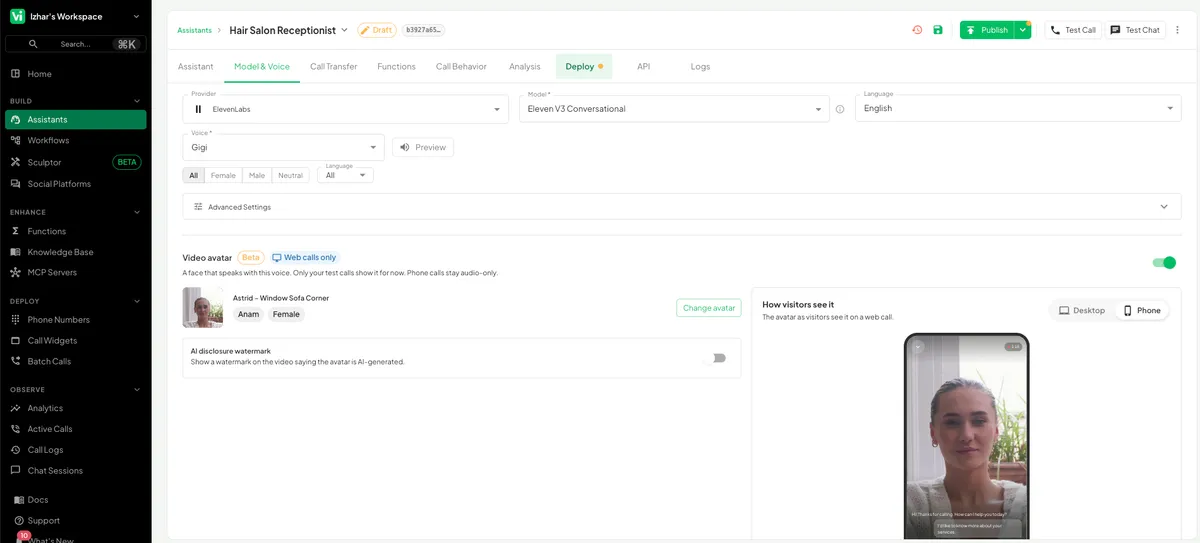
Built for the Agent You Already Have
One setting, two surfaces: turn the avatar on for an assistant or a workflow
No prompt changes: the system prompt and tools stay as they are
No knowledge migration: the same documents and catalogs remain attached
No phone changes: numbers, routing, and transfers are untouched
How Video Avatars Work
The Avatar Lifecycle
Open Model & Voice
Turn on Video avatar
Pick an avatar
Preview with your voice
Tune expressions
Publish
Test call
Website widget
Step-by-Step Setup
Step 1: Open Model & Voice
Open the assistant or workflow in the VoiceInfra dashboard
Go to Model & Voice
Scroll to the Video avatar section
Step 2: Turn On the Avatar
Use the Video avatar switch
If you have never chosen an avatar, the picker opens automatically
If you have, the last avatar comes back
Step 3: Pick an Avatar
Browse the provider catalog
Search by name
Filter by style, model, or gender when the provider offers more than one
Select an avatar to preview it
Step 4: Preview with Your Voice
The picker shows the selected avatar in a live preview
The assistant page previews the same avatar beside the voice and expression settings
Confirm the face matches the voice before you publish
Step 5: Tune Expressions
Turn expressions on if the avatar supports them
Choose from the expressions this avatar can show
Check the voice note: word-timed voices move the face on the word; other voices update it once per reply
Step 6: Publish and Test
Save or publish the assistant or workflow
Start a portal test call to see the avatar in the call
Open the website widget to see the full-screen call stage
What Happens Under the Hood
Every avatar is a video track in the same real-time call as the voice. The audio still comes from the voice pipeline; the avatar is rendered alongside it. Nothing about the agent's prompt, tools, knowledge, or phone routing changes when the avatar is on.
That separation is why one assistant can be audio-only on a phone number and video on a widget. The avatar is a rendering choice, not a second agent.
Avatar Styles and the Picker
Three Style Families
| Style | Look | Good For |
|---|---|---|
| Realistic | Photoreal human face | Customer support, sales, brand ambassadors |
| Illustrated | Stylized character | Friendly brands, education, consumer products |
| 3D Animated | Rendered character | Gaming, product demos, playful experiences |
The available styles depend on the avatar providers configured for your deployment. The picker only shows filters that actually distinguish the catalog in front of you.
Search, Filters, and Preview
Search by name: type to narrow the catalog
Filter by style: realistic, illustrated, or 3D animated
Filter by model: when the provider offers multiple avatar models
Filter by gender: when the catalog includes gender metadata
Chips on each avatar: provider, style, gender, and model at a glance
Live preview: the selected avatar stays visible while you scroll
Remembered choice: switching the avatar off and on brings the last one back
Facial Expressions and Voice Timing
Provider-Driven Expression Settings
Expression controls come from the avatar provider, so they match what the avatar can actually do:
Turn expressions on or off
Choose from the expressions this avatar supports
Options are limited to the avatar's capabilities, not a generic list
Word-Timed vs. Once-Per-Reply
The face can move in two ways:
Word-timed: when the selected voice reports when each word is spoken, the face moves on the word. ElevenLabs, Cartesia, and Deepgram voices support this.
Once per reply: other voices update the face once per response.
Word timing is the difference between a face that feels present and a face that feels like a slideshow. If expressions matter to the use case, choose a supported voice.
Realtime Models and Expressions
Expressions are not available with realtime models. Realtime models speak directly, so there is no separate voice step to time the face to. To use expressions, use a separate speech-to-text, LLM, and voice pipeline.
What a Video Call Looks Like in the Widget
The Full-Screen Stage
When a visitor starts a voice call with an avatar-enabled agent, the widget opens a full-screen video stage:
The avatar fills the stage
The conversation appears over the video
Mute, end, and minimize controls sit on the stage
The visitor can type a message instead of speaking
The call timer and connection state are visible
Small Details That Matter
The call button becomes a camera when the agent has an avatar
The still image holds until the first video frame, so the stage is never blank while the call connects
Typed lines still appear when the transcript is off, so the visitor's text is never lost
Cards sit above the text box, so visual answers stay inside the call
Minimize turns the avatar into a live thumbnail, and the call keeps running
The avatar face appears on voice widgets, not chat-only or call-request widgets
Beta Limits and Compatibility
What Beta Means
Video Avatars are in beta. That means:
The avatar catalog and expression controls depend on the Anam or Keyframe Labs provider configured for your deployment
Phone calls remain audio-only
Realtime models do not support expressions
The feature is labeled Beta in the product
Compatibility Matrix
| Capability | Supported |
|---|---|
| Portal test calls | ✅ |
| Website voice widget | ✅ |
| Website chat widget | ❌ |
| Website call-request widget | ❌ |
| Phone numbers (inbound or outbound) | ❌ (audio only) |
| Workflow agents | ✅ |
| Assistant agents | ✅ |
| Facial expressions with pipeline voices | ✅ |
| Facial expressions with realtime models | ❌ |
| Word-timed movement with ElevenLabs | ✅ |
| Word-timed movement with Cartesia | ✅ |
| Word-timed movement with Deepgram | ✅ |
| Word-timed movement with other voices | Once per reply |
Use Cases for Video Avatars
Website Customer Support
Put a face on the support widget
Let visitors see who is helping them
Keep the transcript and typed input available
Escalate to a human when needed
Sales and Booking
Use a realistic avatar as a visible sales presence
Let the avatar walk a visitor through options
Book appointments without leaving the page
Collect form data before the call begins
Product Guidance and Demos
Show a 3D or illustrated avatar for product tours
Pair the face with visual cards
Keep the conversation on the page
Reduce the need for a separate demo call
After-Hours Web Support
Cover the website when the team is offline
Give the visitor a visible, interactive answer
Capture the details needed for follow-up
Hand off to a human the next business day
Frequently Asked Questions
What is a Video Avatar?
A real-time video face for an AI voice agent. It renders alongside the voice on web calls, so the visitor sees the agent while it speaks.
Does it work on phone calls?
No. Phone calls stay audio-only. The avatar appears in portal test calls and website voice widgets.
Will the avatar change my agent's behavior?
No. The prompt, tools, knowledge, phone numbers, and routing stay the same. The avatar is a visual layer on the existing assistant or workflow.
Can I choose the avatar?
Yes. Browse the provider catalog, search by name, and filter by style, model, or gender when the provider supports it. Preview the avatar before applying it.
Which voices support word-timed movement?
ElevenLabs, Cartesia, and Deepgram. Other voices update the face once per reply.
Why don't realtime models support expressions?
Because there is no separate voice step to time the face to. Realtime models speak directly. Use a speech-to-text, LLM, and voice pipeline if you want expressions.
Does the widget support avatars?
Yes, on voice calls. The widget opens a full-screen video stage, and the visitor can minimize it to a live thumbnail. Chat-only and call-request widgets do not show the avatar.
What happens while the video is connecting?
The avatar's still image holds until the first video frame. The stage is never blank.
Can I turn the avatar off?
Yes. Use the Video avatar switch. The last avatar is remembered, so turning it back on restores your choice.
Does the avatar appear on every widget?
Only voice widgets. If the widget does not support voice calls, there is no avatar to show.
Getting Started
Step 1: Open the Agent
Log in to the VoiceInfra dashboard
Open an assistant or workflow
Go to Model & Voice
Step 2: Enable Video Avatar
Scroll to the Video avatar section
Turn the switch on
The picker opens if no avatar has been chosen
Step 3: Choose and Preview
Search or filter the catalog
Select an avatar
Review the preview beside your voice settings
Step 4: Tune and Publish
Turn expressions on if the avatar supports them
Choose the expressions to show
Save or publish the agent
Step 5: Test the Call
Start a portal test call
Confirm the avatar appears and moves with the voice
Open the website widget and start a voice call
Minimize the stage and confirm the call continues
Conclusion: Key Benefits of VoiceInfra Video Avatars
✅ Web-Only by Design
Video where there is a screen
Phone calls stay audio-only
No wasted rendering on calls that cannot show it
✅ One Agent, Every Surface
Same prompt, tools, knowledge, and routing
Assistant or workflow support
No separate video product
✅ A Catalog, Not a Single Face
Realistic, illustrated, and 3D animated styles
Search and filters
Preview before publishing
✅ Expressions That Match the Voice
Word-timed movement with supported voices
Provider-driven expression controls
Clear notes when a voice updates once per reply
✅ A Widget Built for Video
Full-screen call stage
Minimize to a live thumbnail
Typed input and cards inside the call
Still image until the first frame
✅ Beta With Clear Limits
Labeled Beta in the product
Provider-dependent catalog
No surprise claims about phone video
Ready to put a face on your web calls? Turn on Video Avatars from Model & Voice.
👉 Open the Portal — Turn on Video avatar
👉 Schedule a Demo — See an avatar call live
Related Resources
Voice Agent Guides:
Avatar Providers:
Anam — real-time interactive avatars
Keyframe Labs — lifelike interactive avatars
Additional Reading: