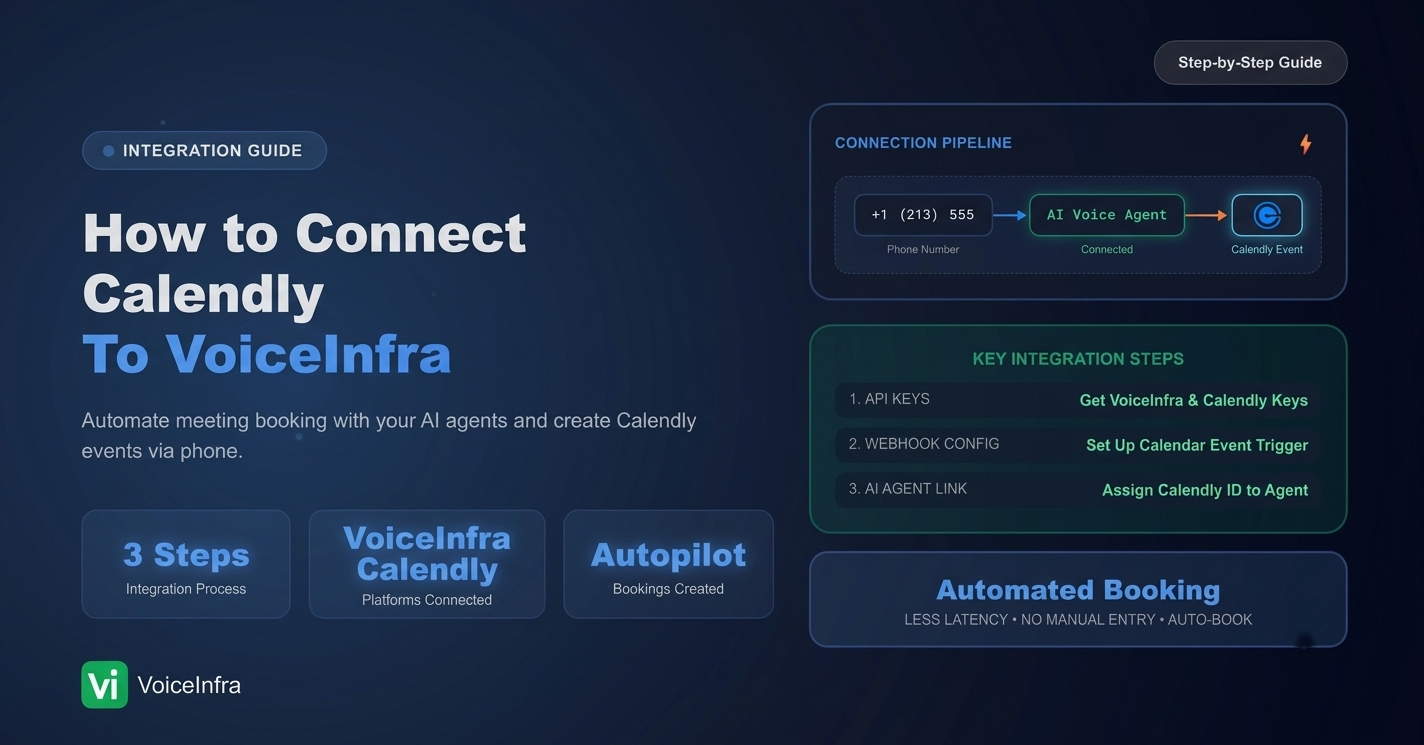
A voice agent that can talk is useful. A voice agent that can talk and actually book the meeting, on the same call, without a human touching a calendar, is what turns a demo into a real sales or support tool. That is exactly what connecting Calendly to VoiceInfra unlocks, and it takes about five minutes to set up. Here is the full walkthrough.
Why Connect Calendly to Your AI Voice Agent
Think about a normal inbound call today. A customer asks to book a consultation, the agent, human or AI, has to say "let me send you a link" or "someone will call you back." That gap is where leads go cold. When Calendly is connected inside VoiceInfra, your AI voice agent can check availability, create the booking, and confirm the time, all inside the same phone call. No link, no follow-up, no manual entry.
Step 1: Open Integrations and Connect Calendly
Inside your VoiceInfra dashboard, go to Enhance > Integrations. Under the Apps section, you will see Calendly listed alongside Cal.com, Google, and Microsoft 365, each with a one-click OAuth connection. Click Connect on the Calendly card.
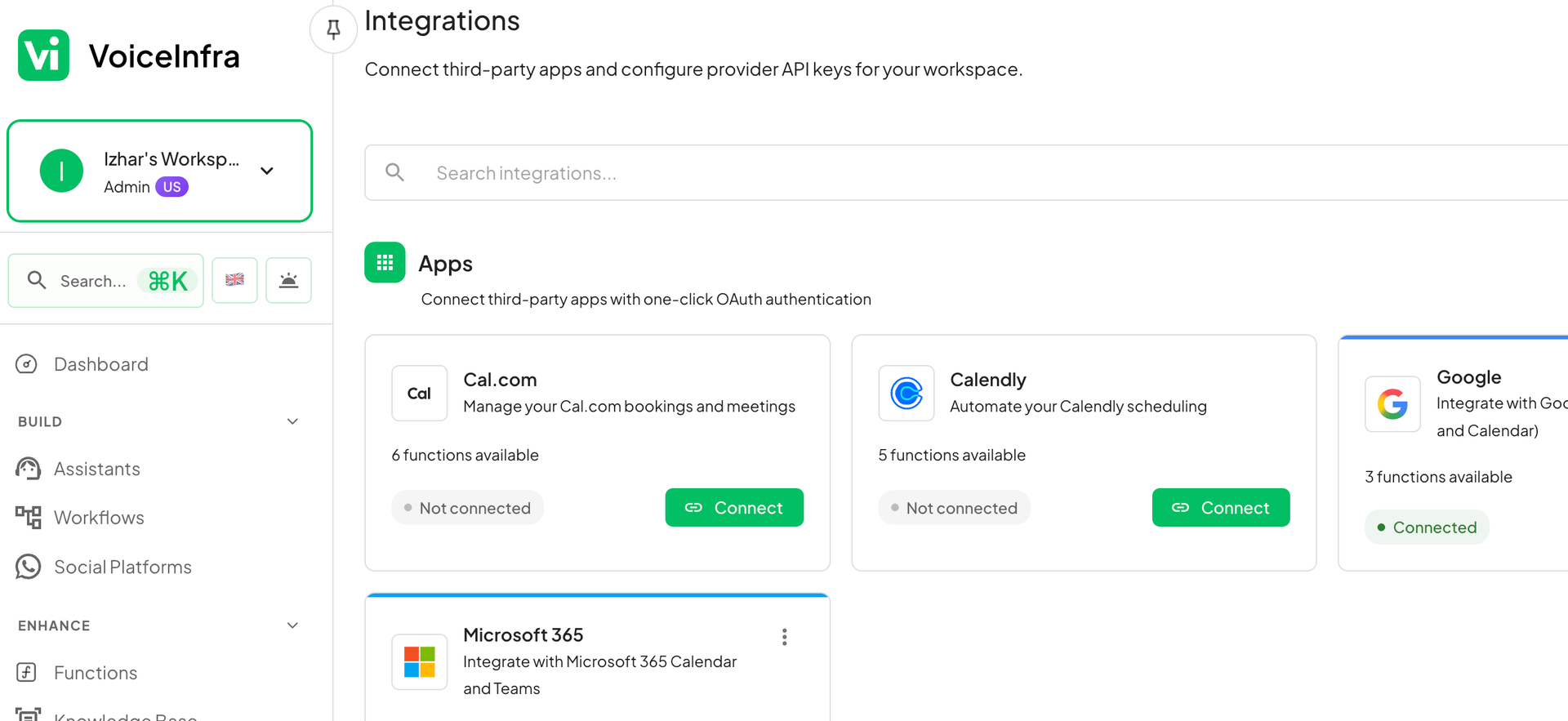
VoiceInfra uses one-click OAuth for this, so there is no manual API key to copy, you just authorize your Calendly account and it is done.
Step 2: Confirm the Connection
Once you authorize the connection, VoiceInfra shows a confirmation screen: "Connection Successful, you have successfully connected your Calendly account," followed by a note that the integration is now active before redirecting you back automatically.
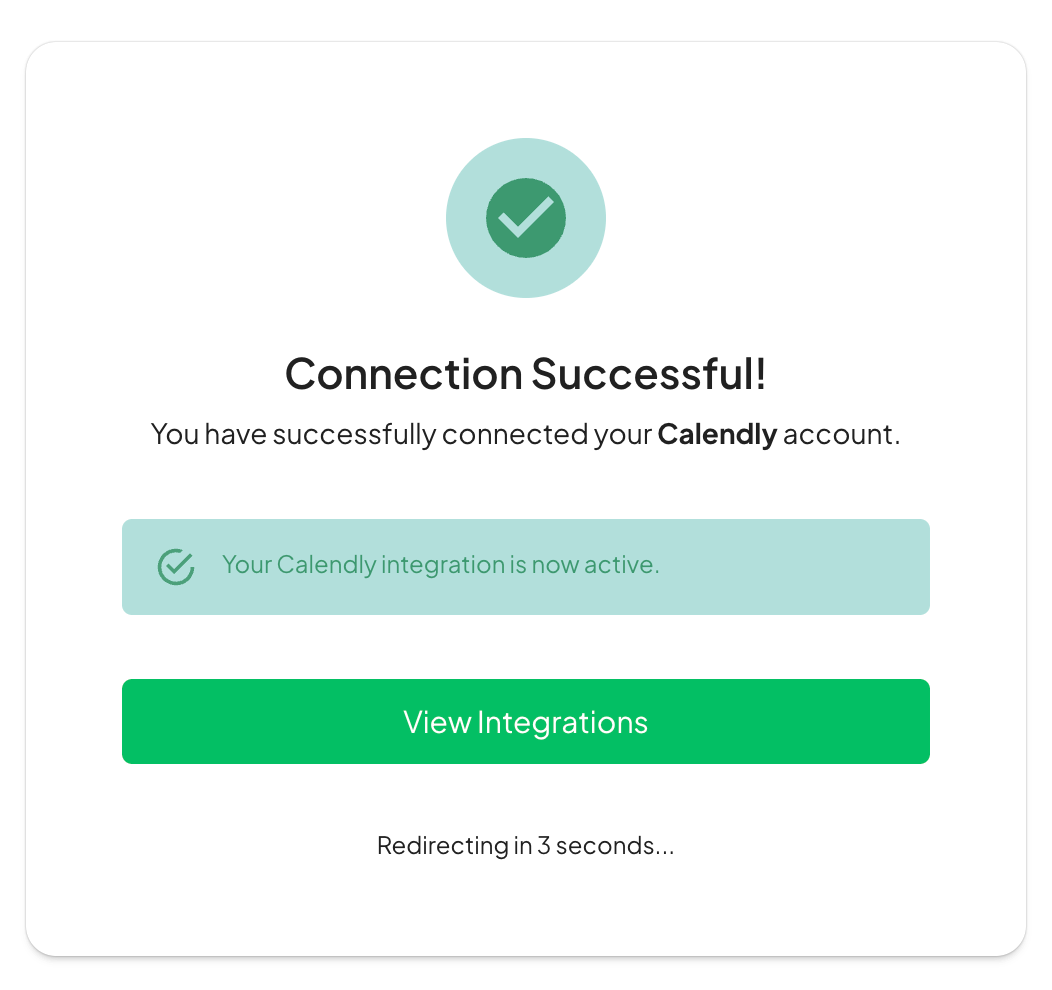
At this point Calendly is live inside your workspace, but it is not doing anything yet, you still need to tell VoiceInfra which event type to use.
Step 3: Your Booking Functions Are Generated Automatically
The moment you confirm the event type, VoiceInfra generates a full set of ready-to-use functions under the Calendly integration: List Event Types, Create Event Invitee, Get Scheduled Events, Cancel Scheduled Event, and Get Event Details. These appear directly in your sidebar, connected and ready to use, no manual API setup required.
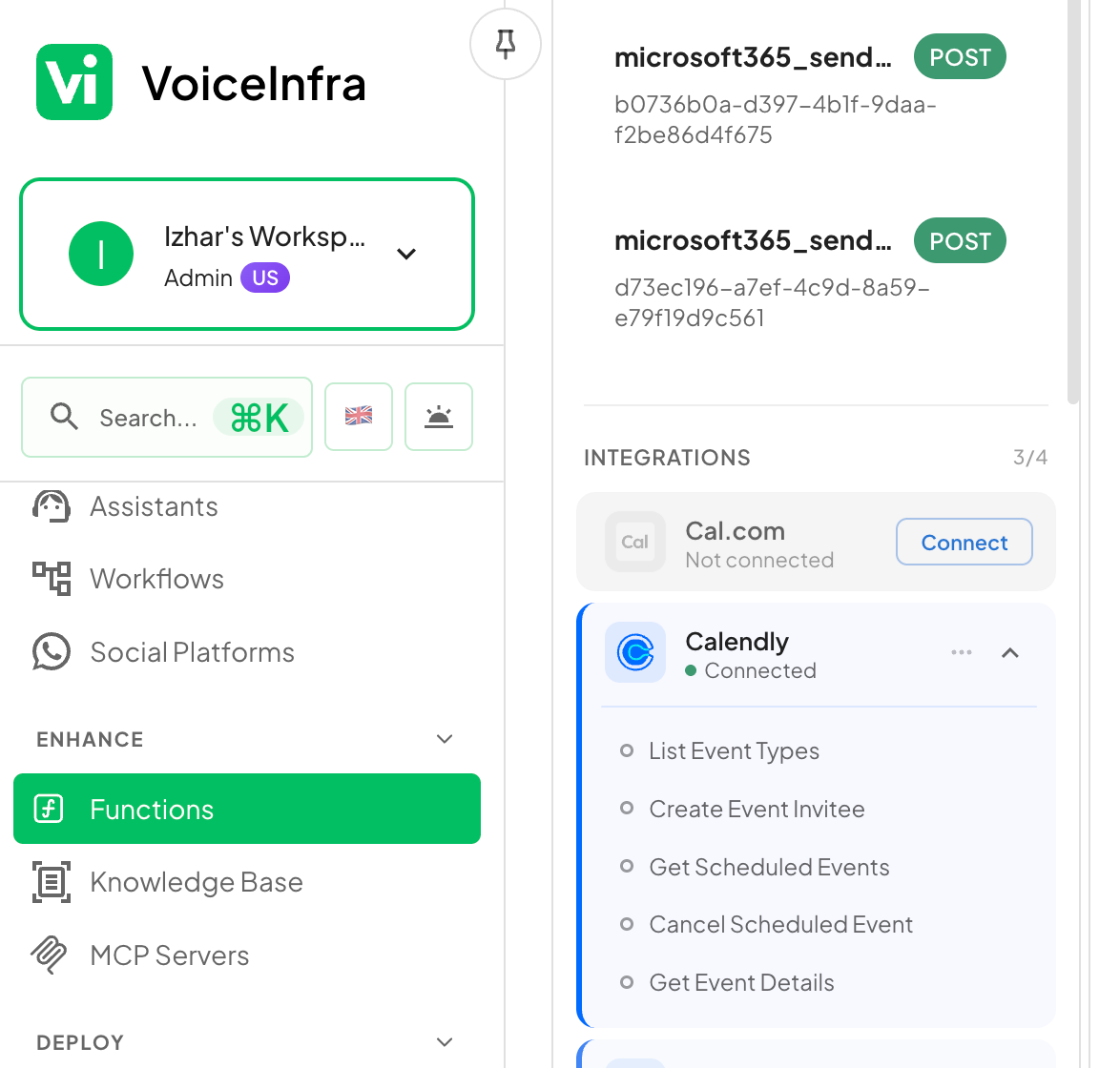
This is the part that saves the most time. Most platforms make you build each API call by hand. VoiceInfra gives you the full CRUD set for scheduling out of the box.
Step 4: Select Your Calendly Event Type
After connecting, VoiceInfra prompts you to Select Calendly Event Type. This is the specific meeting type from your Calendly account, for example a "30 Minute Meeting," that you want your AI agent to book. Selecting it pre-configures the function with the correct event type URI automatically, so you do not have to look up or paste any IDs yourself.
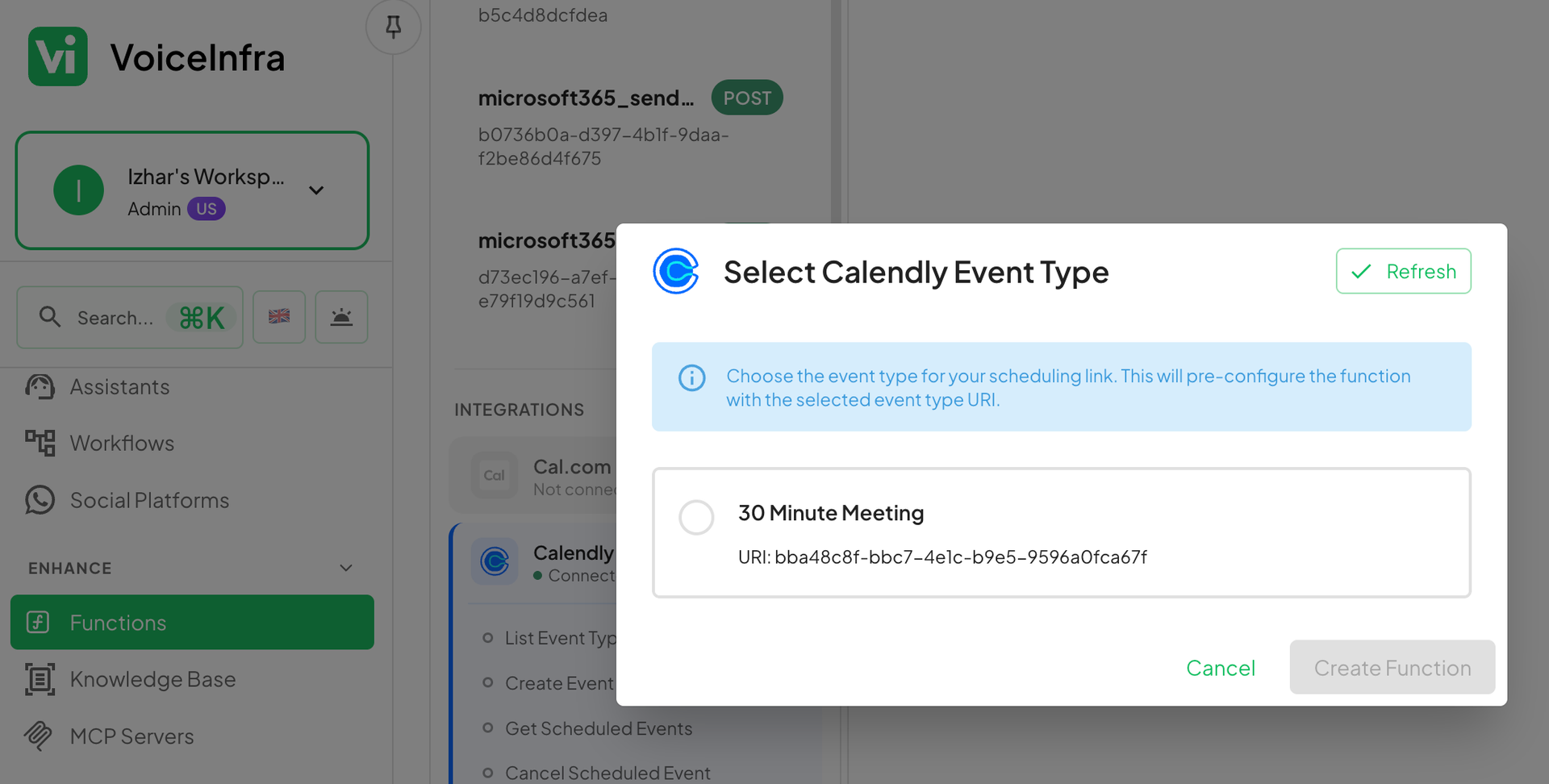
Step 5: Customize the Function to Fit Your Workflow
Every generated function is fully editable under Enhance > Functions. Click into calendly_create_event_invitee, for example, and you will see its Basic Info, including the function name, request type, the live endpoint (https://api.calendly.com/invitees), and a description the LLM uses to understand when to call it. From here you can also configure API Parameters, Request Body, and test it live under Test & Preview before it ever touches a real call.
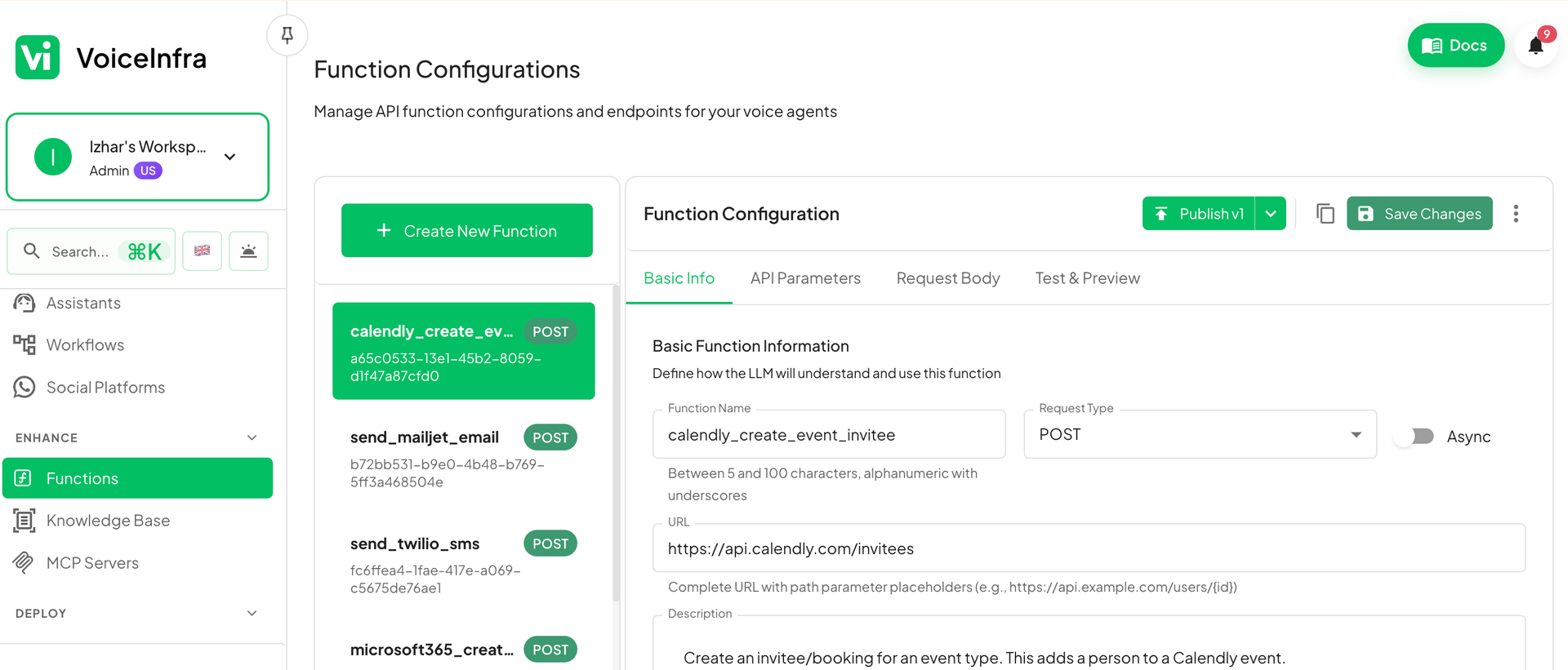
This matters because every business books meetings differently. You might want the AI to always ask for a phone number before confirming, or always attach a specific note to the booking, and this is where you shape that behavior.
Step 6: Assign the Function Inside a Workflow
If your assistant runs on a visual workflow, open the flow builder and add a Tool node at the point in the conversation where booking should happen, right after your agent gathers name, phone number, and email, for example. Inside the node's Configure tab, select calendly_create_event_invitee from the list of available functions.
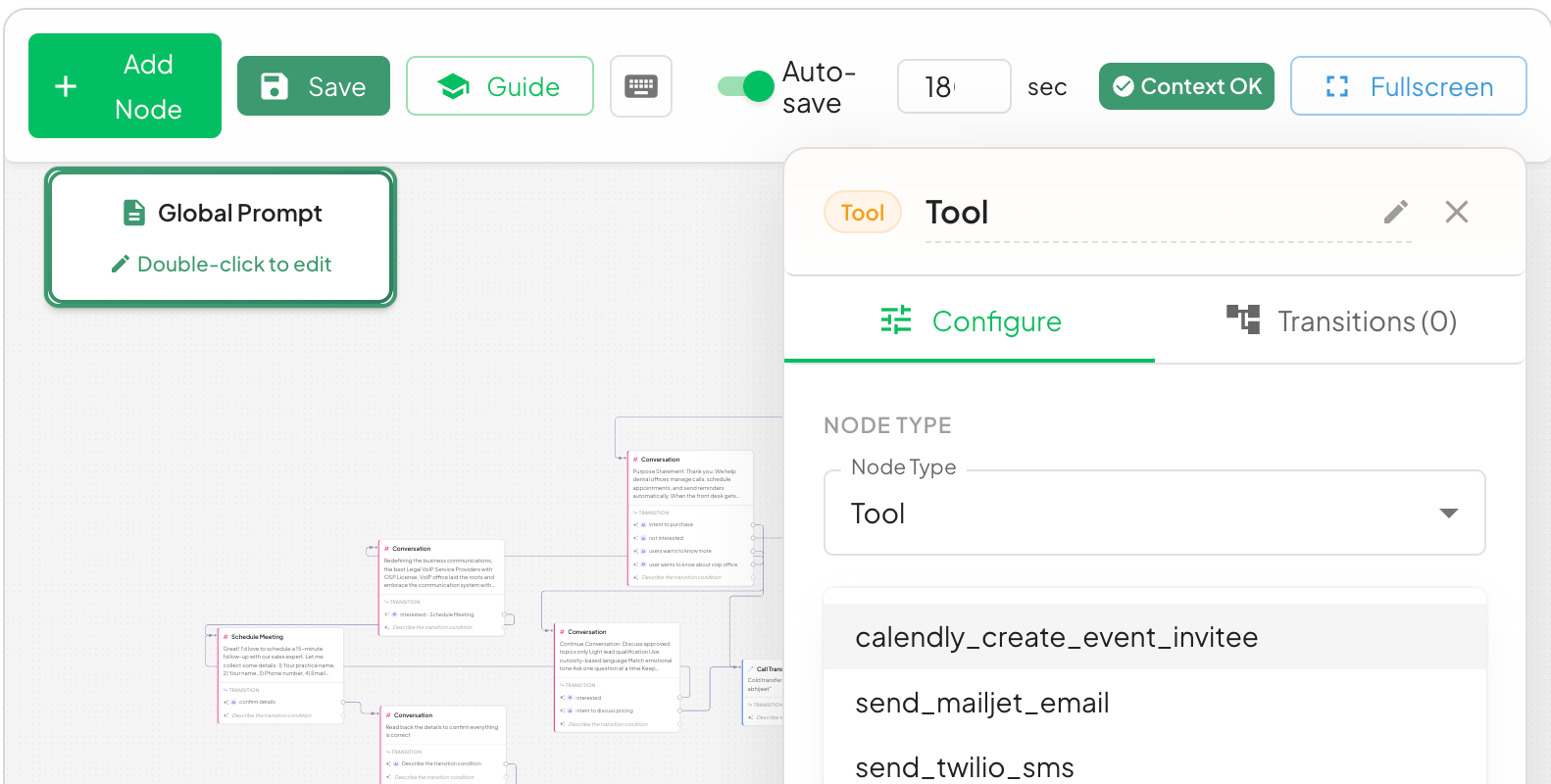
This is what makes the booking feel natural instead of scripted. The AI does not "switch modes" to book a meeting, it simply calls the function at the right moment in the conversation and keeps talking.
Step 7: Assign the Function to an Assistant
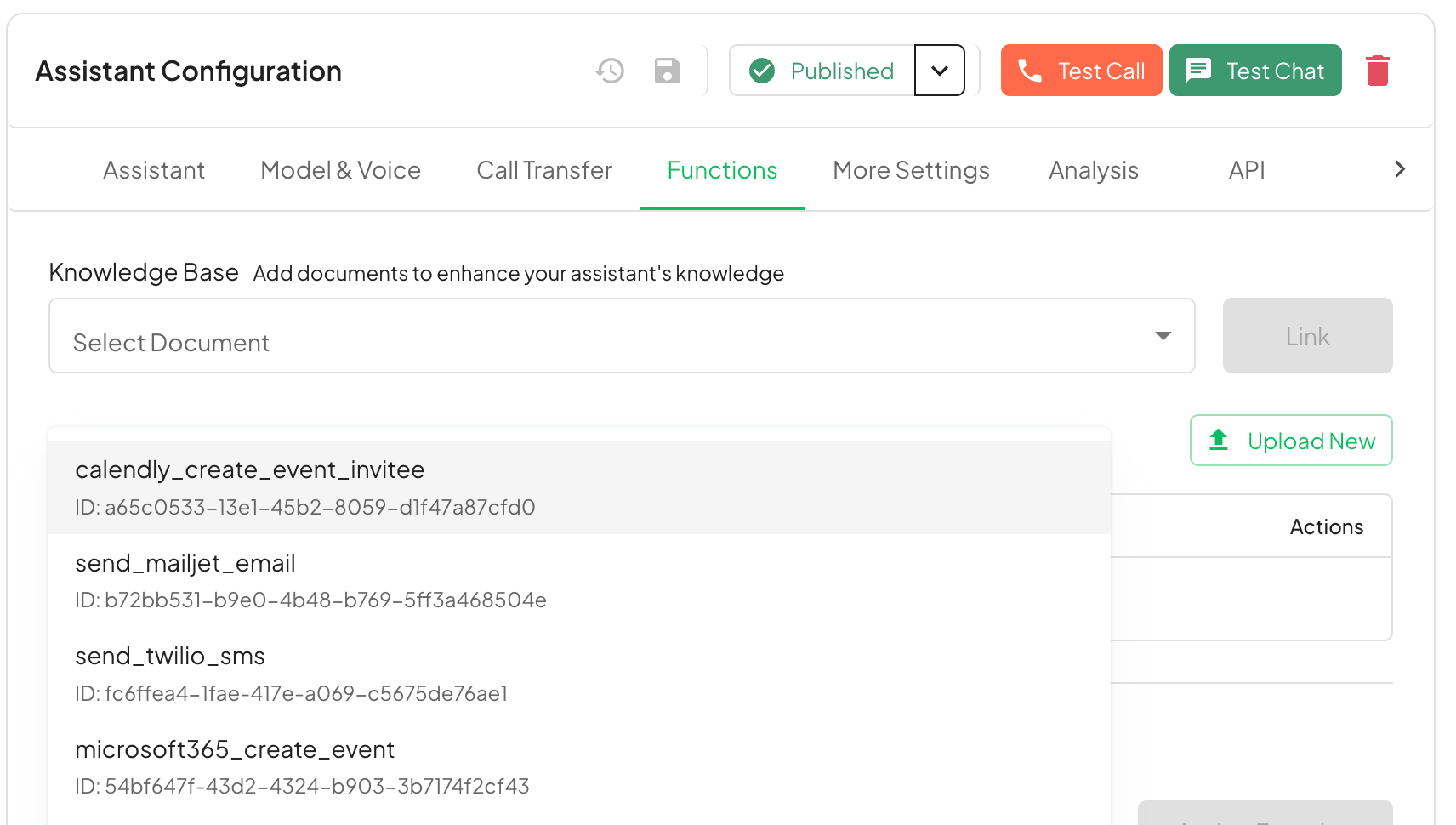
If you are not using a workflow, you can attach the same function directly to an assistant. Open Assistant Configuration > Functions, and under the functions list you will find calendly_create_event_invitee ready to link. Once assigned, publish the assistant and it can book meetings on any call it handles, no workflow required.
What You Can Actually Use This For
Sales calls: the AI qualifies a lead, then books a discovery call on the spot instead of promising a follow-up email.
Clinics and service businesses: patients or clients call in, the AI checks availability and confirms an appointment without a receptionist touching a calendar.
Real estate: a caller asks about a property, the AI books a viewing slot immediately.
Support escalation: when an issue needs a human, the AI books a callback at a time that actually works for the customer.
Rescheduling and cancellations: using Get Scheduled Events and Cancel Scheduled Event, the AI can handle "I need to move my appointment" without transferring the call.
Frequently Asked Questions
Do I need a Calendly paid plan to connect it to VoiceInfra? You need a Calendly account with the event types you want to expose. VoiceInfra connects through OAuth and works with any plan that supports the Calendly API.
Can the AI agent handle more than booking, like cancellations? Yes. The integration generates Cancel Scheduled Event and Get Scheduled Events functions alongside Create Event Invitee, so the same connection covers booking, checking, and cancelling.
Do I have to manually build the API calls myself? No. VoiceInfra auto-generates the functions with the correct endpoints and event type URI once you connect your account and pick an event type. You only need to customize them if you want non-default behavior.
Can I use Calendly functions inside a visual workflow instead of a single assistant? Yes. Add a Tool node in your workflow builder and select the Calendly function you need, this lets you control exactly where in the conversation the booking happens.
What if I use Cal.com or Microsoft 365 instead of Calendly? The same Integrations tab supports Cal.com, Google Calendar, and Microsoft 365 with the same one-click connection flow, so you are not locked into a single scheduling tool.
Get Started
You can have this running on your own AI voice agent today. Sign up for a free VoiceInfra trial and connect Calendly from the Integrations tab in a few minutes.
Want to see what this costs at scale? Check the VoiceInfra pricing page. If you would rather have someone walk you through the setup, contact the VoiceInfra team directly.