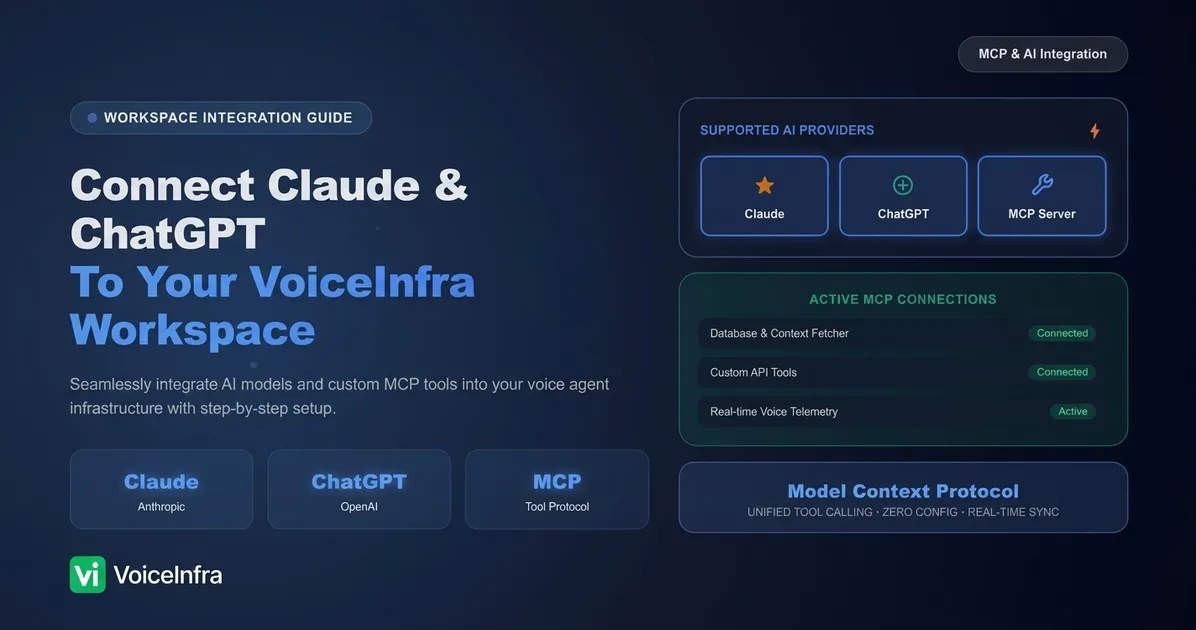
VoiceInfra now supports the Model Context Protocol, or MCP, so you can connect Claude, ChatGPT, or any MCP-compatible tool directly to your workspace. One address, one connection, and your assistant can start working with your voice agents, calls, and data right from the app you already use.
Connected Apps is where you manage all of it. It gives you one place to connect new tools, see what is already connected, and control exactly what each one can access.
What Connected Apps Lets You Do
Connect Claude, ChatGPT, or any MCP-compatible tool using one workspace address
See every connected app, when it was added, and when it was last used
Review access area by area, from voice agents to billing, before approving anything
Switch on edit access only for the areas you actually want a tool to change
Disconnect any app instantly, with no waiting period
Why This Matters
Every MCP connection you approve is a door into your workspace, and a voice AI workspace holds more than people assume: call transcripts, customer phone numbers, knowledge base documents, billing data, sometimes recordings.
Most platforms bury this in a developer console nobody opens after setup day. An old integration from a two week experiment stays connected long after the project ends. A tool ends up with more access than the task ever needed. Nobody notices until an audit or a security review forces the issue.
Connected Apps puts all of that on one screen so nothing sits there unnoticed.
Where to Find It
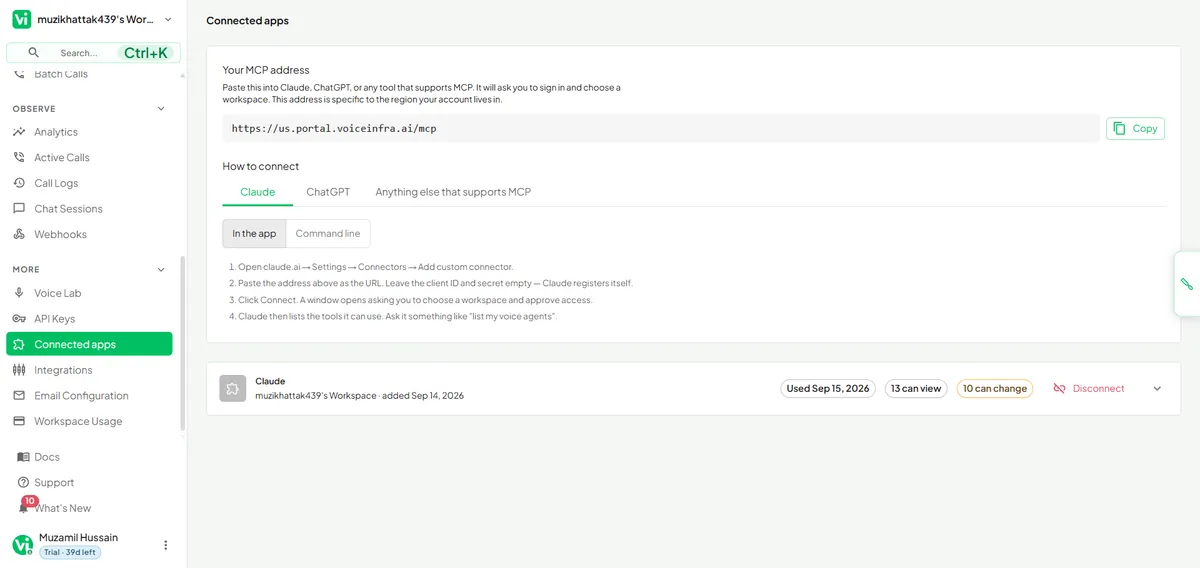
Connected Apps lives in your dashboard sidebar, under More, alongside Integrations, Email Configuration, and Workspace Usage.
What You Need to Get Started
A VoiceInfra account with access to Connected Apps
Claude, ChatGPT, or any tool that supports MCP
Your workspace's MCP address, copied from the Connected Apps page
Simple Setup
Step 1: Open Connected Apps Go to your VoiceInfra dashboard and click Connected Apps in the sidebar.
Step 2: Copy your MCP address The page shows a ready-made MCP address for your workspace, specific to the region your account lives in. For example:
https://us.portal.voiceinfra.ai/mcpClick Copy.
Connecting Claude
Open claude.ai, go to Settings → Connectors → Add custom connector.
Paste the address above as the URL. Leave the client ID and secret empty, Claude registers itself.
Click Connect. A window opens asking you to choose a workspace and approve access.
Claude lists the tools it can use once connected.
Connecting ChatGPT or Anything Else That Supports MCP
The Connected Apps page has separate tabs for ChatGPT and for any other MCP-compatible tool, each with its own setup instructions and a command line option.
Reviewing Access Before You Approve
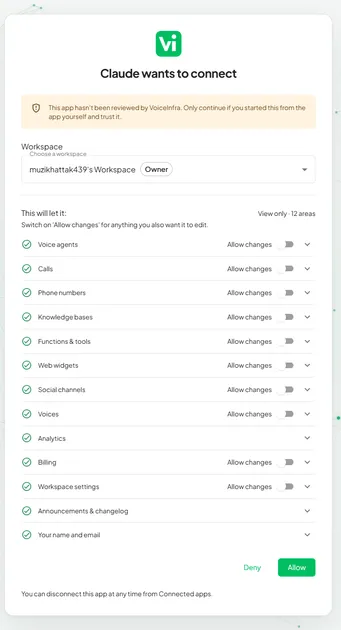
When you click Connect, VoiceInfra shows a consent screen before anything is granted. It includes:
A warning that the app has not been reviewed by VoiceInfra, with a reminder to only continue if you started the connection yourself
The workspace you are connecting to
A full breakdown of access by area: voice agents, calls, phone numbers, knowledge bases, functions and tools, web widgets, social channels, voices, analytics, billing, workspace settings, announcements and changelog, and your name and email
Every area defaults to view only. You switch on "Allow changes" individually for any area you also want the app to edit.
After You Connect
Once approved, the app shows up in your Connected Apps list with:
The date it was added
Its last-used date
A summary of how many areas it can view and how many it can change
A good way to confirm the connection works is to ask your assistant something like "list my voice agents."
Best Practices
Review monthly. Treat it like reviewing app permissions on your phone. Five minutes catches stale connections before they become a liability.
Check last-used dates, not just names. A connection you forgot about will show it.
Read the access breakdown before approving. If a tool wants "Allow changes" on something that only needs view access, that is worth a second look.
Disconnect first, ask questions later. Revoking costs nothing. Reconnecting takes seconds if you still need it.
FAQs
Where do I find Connected Apps in VoiceInfra?
In the dashboard sidebar, under More.
What apps can I connect?
Any tool that supports MCP, including Claude and ChatGPT, using your workspace's MCP address.
Can I see what an app is actually allowed to do?
Yes. The consent screen breaks access down area by area, showing what is view only and what has changes allowed.
How do I know if a connected app is still active?
Each entry shows when it was added, its last-used date, and how many areas it can view versus change.
How do I remove an app's access?
Open Connected Apps, find the app, and click Disconnect. Access is revoked immediately.
Does disconnecting an app delete my data?
No. It only revokes the app's access going forward.
How often should I review my connected apps?
Once a month is a good habit.
Start Connecting
If your workspace has more than two or three integrations, it is worth logging in and checking Connected Apps right now. You might be surprised what is still connected.
Related reading
Typical Monthly AI Voice Agent Minutes for Small Business After-Hours Receptionists
What is SIP Protocol & Why Every Telephony Voice AI Agent Needs It